Anze/KeyCluCask: Instant macOS Shortcut Discovery Without Memorization
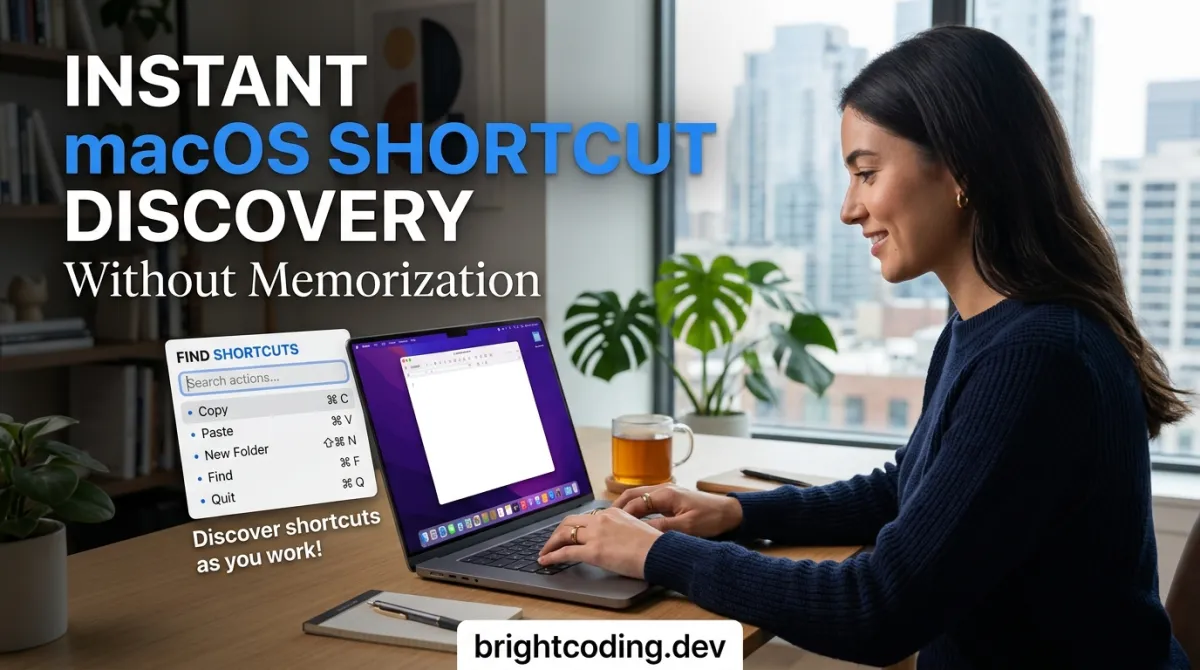
Developers and power users on macOS face a persistent friction: every application ships with dozens of keyboard shortcuts, but no consistent way to discover them without breaking flow. Menu bar digging, preference panel hunting, or memorizing cheat sheets all pull attention away from the actual task. KeyCluCask solves this with a dead-simple interaction model—press ⌘ twice and hold—and an open-source, privacy-respecting implementation that has earned 2,357 GitHub stars and active community contributions.
This article breaks down what KeyCluCask does, how it works under the hood, and why it deserves a place in your macOS productivity stack.
What is Anze/KeyCluCask?
KeyCluCask is a macOS utility developed by Anze (Sergii Tatarenkov) that provides an instant, contextual overlay of keyboard shortcuts for the currently focused application. It is distributed as a free, open-source project under the BSD 3-Clause Clear License, with the latest commit dated July 11, 2026—indicating active maintenance.
The tool occupies a specific niche in the macOS productivity ecosystem: runtime shortcut discovery. Unlike static cheat sheets or menu bar reference tools, KeyCluCask queries the active application's actual shortcut configuration at the moment of invocation. This means it reflects customizations, not just factory defaults.
Technically, KeyCluCask leverages the macOS Accessibility API to read application menu structures and extract keyboard shortcut bindings. This approach has two implications: it requires explicit user permission for Accessibility access, and it works across most Cocoa-based applications without per-app plugins or scripting extensions.
The project shows healthy community engagement with 2,357 stars and 39 forks. Distribution occurs through GitHub Releases (as signed .dmg files) and Homebrew Cask, lowering the barrier to adoption for both manual installers and package-manager-centric workflows. The developer also maintains public download counters for both channels, suggesting transparency about adoption metrics.
KeyCluCask supports macOS Big Sur (11.0) and later, running natively on both Apple Silicon and Intel architectures. The codebase incorporates several well-vetted dependencies: Sparkle for automatic updates, SQLite.swift and SQLiteMigrationManager.swift for local data persistence, and JSON.swift for configuration parsing. The project also maintains Crowdin-based localization, with Simplified Chinese (zh-CN) already contributed by community members.
Key Features
KeyCluCask's feature set centers on customizable, non-intrusive shortcut discovery with several power-user refinements:
Dual Activation Modes The default trigger—double-tap ⌘ and hold—prevents accidental invocation during normal typing. An alternative single-⌘-hold mode accommodates users who prefer reduced finger gymnastics, though this risks more misfires during regular command-key usage.
Adaptive Theming The overlay respects system appearance settings (light/dark/auto) and allows explicit override. This matters for users who switch between environments or need consistent visibility against varying application color schemes.
Bookmarking and Filtering Users can bookmark frequently referenced shortcuts and hide mastered ones, progressively decluttering the overlay. This transforms KeyCluCask from a reference tool into a personalized learning aid.
Collapsible Grouping Shortcuts organize by application menu hierarchy (File, Edit, View, etc.) with collapsible sections. This preserves spatial orientation—users learn where shortcuts live in the menu structure, not just isolated key combinations.
Export Capability The markdown↗ Smart Converter export feature generates portable documentation of an application's shortcuts. This proves valuable for team onboarding, blog posts, or building internal wiki references without manual transcription.
Extended Shortcut Sources Beyond native app shortcuts, KeyCluCask integrates with macOS system hotkeys, skhd (a popular macOS hotkey daemon for window management), and user-defined custom shortcuts. This consolidation addresses a genuine pain point: macOS power users typically juggle shortcuts across three or more independent systems.
Privacy-First Design The developer explicitly states: no analytics, no advertising, no personal data collection. For a tool with Accessibility API access—effectively screen-reading capability—this commitment carries significant trust weight.
Use Cases
1. New Application Onboarding
Developers switching IDEs (Xcode to VS Code to JetBrains), designers learning Figma's evolving shortcut set, or writers adapting to new publishing tools all face the same ramp. KeyCluCask eliminates the cognitive load of memorization-before-use; shortcuts become discoverable on-demand during actual work.
2. Customized Workflow Documentation
Teams standardizing on custom key bindings—whether through macOS System Preferences, CustomShortcuts, or direct application configuration—lose synchronization with published documentation. KeyCluCask's live reading captures the ground truth of what's actually configured on a given machine.
3. skhd-Driven Window Management
Users of koekeishiya/skhd often accumulate dozens of personal window-management shortcuts across multiple prefixes. KeyCluCask's skhd integration surfaces these alongside application shortcuts, reducing the "which chord did I bind that to?" friction that plagues complex skhd configurations.
4. Accessibility and Cognitive Load Reduction
Developers with memory limitations, attention differences, or simply overloaded mental models benefit from externalized shortcut storage. The double-⌘ gesture becomes muscle memory faster than dozens of individual shortcuts.
5. Cross-Training and Pair Programming
When pairing or mentoring, KeyCluCask provides a shared, visible reference without disrupting the driver's flow. The observer can silently track shortcuts being used or suggest alternatives visible in the overlay.
Installation & Setup
Homebrew (Recommended)
brew install --cask keyclu
This command taps the Homebrew Cask repository, downloads the latest signed release, and installs KeyClu to /Applications. The --cask flag is required because KeyClu distributes as a compiled macOS application, not a command-line formula.
After installation, launch KeyClu from Launchpad or Spotlight. The application runs as a menu bar agent; no dock icon appears by default.
Manual Installation
- Navigate to the latest release page
- Download the
.dmgfile - Open the
.dmgand drag KeyClu to/Applications - Eject the disk image
Required Permissions
KeyCluCask requires Accessibility API access to read application menu structures. Upon first launch:
- macOS presents a security dialog
- Open System Preferences → Security & Privacy → Privacy → Accessibility
- Check the box for KeyClu
Optional but recommended: Grant Notification Center access for gentle update notifications via Sparkle. The app functions without this, but you'll miss version prompts.
Post-Installation Verification
Press ⌘ twice and hold. A translucent overlay should appear listing the current application's shortcuts. If nothing happens, verify:
- KeyClu appears in Activity Monitor
- Accessibility permission is granted (not just requested)
- No conflicting utility intercepts the double-⌘ gesture
Real Code Examples
The README does not contain traditional "code examples" in the programming sense—KeyCluCask is a compiled application, not a library or CLI tool. However, it exposes CLI parameters for integration and automation. The following examples reproduce documented usage patterns from the project's wiki.
CLI Invocation for Specific Applications
KeyCluCask supports command-line parameters for scripted or remote invocation. Refer to the CLI params wiki page for comprehensive documentation.
# Example: Trigger KeyClu overlay for frontmost application via CLI
# (Exact parameter syntax documented on wiki; verify current version)
/Applications/KeyClu.app/Contents/MacOS/KeyClu --show-shortcuts
This pattern enables integration with Hammerspoon, BetterTouchTool, or other macOS automation frameworks that can shell out to applications. The CLI surface is intentionally narrow—KeyCluCask's design prioritizes the direct interaction model over scripting complexity.
skhd Integration Configuration
For skhd users, KeyCluCask reads the skhd configuration file to display bound shortcuts alongside native application shortcuts. No explicit configuration is required if skhd uses its default config path (~/.skhdrc). For custom locations, consult the skhd wiki page.
# Typical skhd shortcut that complements KeyCluCask discovery
# (From skhd documentation; shown for context of integration value)
cmd - return : open -na /Applications/Alacritty.app
With KeyCluCask's skhd integration active, pressing ⌘⌘-hold in any application would display this cmd - return binding under a skhd section, preventing collision with application-native shortcuts.
Homebrew Installation Verification
# Verify cask installation and current version
brew list --cask keyclu
brew info --cask keyclu
These standard Homebrew commands confirm KeyCluCask's presence and display version metadata. The cask formula automatically handles Sparkle-based update checks; brew upgrade --cask keyclu fetches new releases.
Note: The README's CLI documentation resides on wiki pages rather than inline. Developers should verify current parameter syntax against the live wiki, as CLI interfaces evolve between releases.
Advanced Usage & Best Practices
Progressive Disclosure Strategy Start with all shortcuts visible, then aggressively hide mastered ones. The bookmark feature serves as a "frequently confused" list—not a favorites list. This inverted usage pattern maximizes learning velocity.
Export for Team Standards When onboarding colleagues to a heavily customized tool (e.g., Emacs with macOS-native key remapping), export markdown and commit to repository documentation. The export captures the actual bindings, not aspirational standards.
skhd Prefix Discipline
If using skhd, adopt a consistent prefix scheme (e.g., hyper key, or cmd + shift + ctrl) and document it in KeyCluCask-visible comments. The integration parses comments beginning with specific patterns; see wiki for current conventions.
Accessibility Permission Hygiene Periodically audit System Preferences → Accessibility for stale entries. macOS accumulates permissions for deleted applications, and KeyCluCask's functionality degrades if the permission dialog was previously dismissed and not re-granted.
Update Strategy Sparkle notifications are gentle by design. Given the project's active commit history, enabling Notification Center access ensures timely security and compatibility updates, particularly around macOS version transitions.
Comparison with Alternatives
| Tool | Approach | Key Difference | Trade-off |
|---|---|---|---|
| KeyCluCask | Runtime Accessibility API reading | Live, contextual, zero configuration per app | Requires Accessibility permission; limited to accessible apps |
| CheatSheet (Media Atelier) | Similar Accessibility-based overlay | Longer track record, broader macOS version support | Not open-source; update frequency unclear |
| Paletro (apparent.so) | Command palette pattern (VS Code-style) | Unified search across commands and shortcuts | Different interaction model; subscription pricing |
| Manual menu exploration | Native, no tools | Always accurate, no permissions | Destroys flow state; impractical for infrequent actions |
KeyCluCask's open-source licensing and privacy guarantee distinguish it from commercial alternatives. For developers who audit their toolchain's supply chain or require license compliance documentation, BSD-3-Clause-Clear provides explicit patent and attribution clarity. The trade-off is narrower platform support (macOS only) and dependency on Apple's Accessibility APIs, which occasionally break or require re-authorization across OS upgrades.
CheatSheet represents the closest functional equivalent and merits consideration for users on pre-Big Sur systems or those prioritizing proven stability over active development velocity. Paletro serves a different mental model—search-first rather than browse-first—and appeals to users already comfortable with command palettes in their primary applications.
FAQ
Q: Why does KeyCluCask need Accessibility access? A: The macOS Accessibility API reads application menu structures to extract shortcut bindings. No alternative API provides this information. The developer commits to no data transmission.
Q: How do I open Settings if the menu bar icon is hidden?
A: Relaunch the application from /Applications or Spotlight. The second instance detects the running process and opens Settings directly.
Q: Does KeyCluCask work with all applications? A: Most Cocoa and many Carbon applications work. Electron apps vary by implementation; apps using fully custom menu systems may show incomplete or no shortcuts.
Q: Is there a Windows or Linux version? A: No. The Accessibility API dependency and native Swift implementation make macOS exclusivity a structural constraint, not a temporary limitation.
Q: How do I report crashes? A: Open a GitHub issue with system logs and reproduction steps. The FAQ wiki page details log collection locations.
Q: Can I contribute translations? A: Yes, via the Crowdin project. Simplified Chinese exists; other languages welcome.
Q: What's the license for commercial use? A: BSD 3-Clause Clear License permits commercial use, modification, and distribution with attribution. See the LICENSE file for full terms.
Conclusion
Anze/KeyCluCask addresses a narrow, genuine pain point with precision: the friction of shortcut discovery on macOS. Its 2,357-star adoption reflects not viral hype but sustained utility for developers, writers, and power users who refuse to memorize what their machines already know.
The tool fits best for macOS users who:
- Switch applications frequently
- Customize shortcuts aggressively
- Value privacy-respecting, auditable tools
- Prefer discoverability over memorization
It is not a universal solution—Windows and Linux users need alternatives, and applications with non-standard menu architectures may frustrate—but within its domain, KeyCluCask represents thoughtful, maintained utility engineering.
Install via brew install --cask keyclu or download from the latest release. Star the repository if it saves you a single menu-bar hunt, and consider supporting the developer's caffeine fund if it becomes daily infrastructure.
For related macOS productivity tooling, see [INTERNAL_LINK: macOS developer workflow optimization].
Outils recommandés
Explore on the BrightCoding network
Hand-picked resources from our other sites.
Stop Losing Users to Confusion! Build Insane Onboarding with Intro.js
Discover how Intro.js, the lightweight user onboarding library, helps you build interactive product walkthroughs in minutes. Stop user churn with data-attribute...
FunnyWolf/agentic-soc-platform: Open-Source AI SOC for Alert Fatigue
FunnyWolf/agentic-soc-platform is an open-source Agentic AI security operations platform with 951 GitHub stars. It automates SOC triage, investigation, and enri...
Renset/macai: Native macOS AI Chat for Multiple LLM Providers
Renset/macai is an open-source native macOS AI chat client supporting ChatGPT, Claude, xAI, Google Gemini, Ollama, and OpenRouter. Built in Swift with iCloud Sy...
Continuez votre lecture
Why Alexandrie is the Ultimate Markdown Note-Taking App

Why CrossPaste is the Ultimate Game Changer for Clipboard Management
Why Chandra is the Ultimate OCR Tool for Handwriting and Tables

Stop Coding Alone: OPC-Skills Gives Your AI Agent Superpowers
Commentaires 0
Aucun commentaire pour l'instant. Soyez le premier à réagir !