AudioAuditor Exposes Fake Lossless Files Instantly
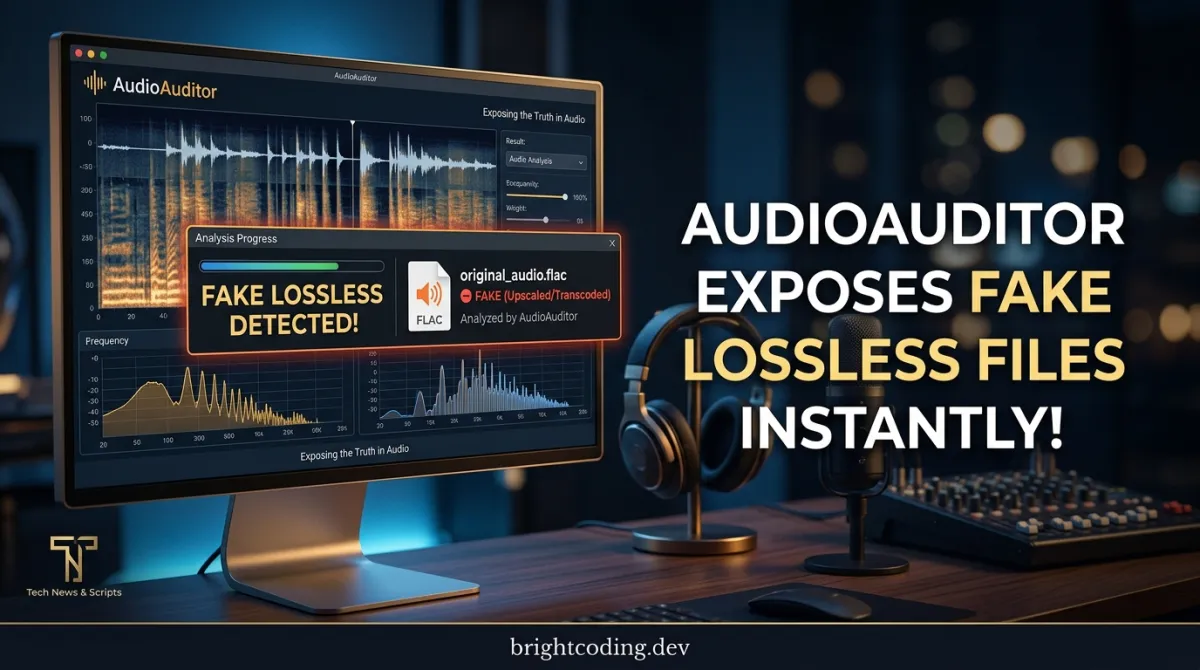
AudioAuditor Exposes Fake Lossless Files Instantly
Your 24-bit FLAC collection might be a lie. That pristine "lossless" album you paid premium for? It could be an upscaled MP3 in disguise. And those "original" tracks flooding streaming platforms? AI-generated fakes are everywhere now — Suno, Udio, Boomy — polluting libraries faster than anyone can manually check.
Here's the brutal truth: your ears can't detect this fraud. Neither can your media player. The file says FLAC, the bitrate looks right, but the spectral data tells a completely different story. Without forensic audio analysis, you're flying blind.
Enter AudioAuditor — the free, open-source Windows application that's become the secret weapon of serious audiophiles, music producers, and audio archivists. This isn't just another metadata viewer. AudioAuditor performs deep spectral analysis, detects fake lossless encodes, identifies AI-generated audio from 20+ services, spots digital clipping, analyzes MQA encoding, and renders full-resolution spectrograms — all wrapped in a stunning, themeable interface with a built-in player, EQ, and spatial audio.
Built by a solo developer passionate about audio integrity, AudioAuditor has already earned recognition from FMHY and a growing community of quality-obsessed users. Ready to discover what's really in your audio files? Let's dive in.
What is AudioAuditor?
AudioAuditor is a feature-rich desktop application for Windows that performs comprehensive forensic analysis on audio files. Created by developer Angel and released under the Apache 2.0 license, this tool bridges the gap between professional audio engineering software and consumer-grade media players.
At its core, AudioAuditor solves a deceptively simple problem: verifying that your audio files actually contain the quality they claim. The application runs on .NET 8 with a WPF interface, making it fully native to Windows without requiring any runtime installation — the published executable is completely self-contained.
The project has evolved rapidly, reaching version 1.7.0 with substantial feature additions. What started as a basic fake lossless detector has expanded into a complete audio analysis suite with AI detection capabilities, a full music player, batch operations, and even a powerful command-line interface.
AudioAuditor is trending now because it arrives at a critical inflection point. The explosion of AI music generators has created an authentication crisis — listeners, collectors, and platforms need to verify provenance. Simultaneously, the resurgence of "hi-res" audio marketing has led to widespread upsampling fraud, where lossy sources are repackaged as premium formats. AudioAuditor addresses both problems with verifiable, transparent analysis.
The tool's credibility is further bolstered by its open-source nature — anyone can inspect the detection algorithms, contribute improvements, or build from source. No black-box proprietary claims here. Just reproducible, evidence-based audio forensics.
Key Features That Make AudioAuditor Essential
AudioAuditor's capabilities extend far beyond simple format verification. Here's what separates it from basic audio tools:
Forensic-Grade Analysis Engine
The core analysis performs 4096-point FFT spectral analysis with Hanning windowing to determine true effective frequency ceilings. This reveals whether a "24-bit/96kHz" file actually contains ultrasonic content or if it's been lowpassed at 16kHz — the smoking gun of an upsampled lossy source. The optional Hi-Fi mode upgrades to Blackman-Harris windowing with 16384-point FFT for enhanced detail, with a deep −130 dB analysis floor that exposes low-level artifacts invisible to standard tools.
Multi-Vector AI Detection
AudioAuditor doesn't rely on any single method to identify AI-generated audio. It combines metadata tag scanning (ID3v2, Vorbis, APE, M4A), raw byte pattern analysis across file sections, C2PA/Content Credentials verification, AI watermark detection (AudioSeal, SynthID, WavMark), experimental spectral analysis with 7 checks, and optional SH Labs API integration — all producing a three-state verdict with confidence scoring.
Professional Playback & Monitoring
The built-in player isn't an afterthought. It features 10-band parametric EQ (32 Hz–16 kHz, ±12 dB), crossfeed-based spatial audio with HRTF simulation, gapless playback, configurable crossfade with 4 curve types, and hi-res audio support up to 192 kHz with automatic device fallback resampling. The seek safety protection prevents loud pops during navigation — a detail that reveals serious engineering.
Performance Intelligence
AudioAuditor respects your system resources with configurable CPU and memory limits that dynamically scale to your hardware. The auto CPU mode uses half your logical processors (clamped 1–16); auto memory defaults to 25% of system RAM. When limits approach, processing pauses, garbage collection triggers, and analysis resumes — preventing the system freezes common with less disciplined tools.
Complete Format Ecosystem
The application supports 15 audio formats across lossless (FLAC, WAV, AIFF, APE, WV, ALAC), lossy (MP3, AAC, OGG, OPUS, WMA, M4A), and DSD (DSF, DFF) — plus a custom managed FLAC decoder for files that NAudio cannot natively handle.
Real-World Use Cases Where AudioAuditor Shines
1. Audiophile Collection Verification
You've spent thousands building a "lossless" music library from various sources — rips, downloads, trades. But how many are genuine? AudioAuditor's fake lossless detection analyzes spectral content and effective frequency cutoffs to identify upsampled files. The frequency cutoff allow feature (default 19,600 Hz) prevents false positives on legitimately band-limited masters while catching obvious fraud. Batch-scan your entire collection and export results to Excel or PDF for systematic cleanup.
2. Music Production Quality Control
Before mastering or distributing, producers need to verify technical integrity. AudioAuditor's clipping detection with thorough mode catches scaled-down clipping (reported as "SCALED (dB, %)"), while true peak measurement using 4× oversampling and LUFS measurement per ITU-R BS.1770 ensure broadcast compliance. The dynamic range and BPM detection provide additional mastering insights. The spectrogram viewer with L-R difference channel reveals stereo imaging problems invisible in waveform views.
3. AI Audio Provenance Verification
With AI music generators producing millions of tracks, platforms and curators need authentication tools. AudioAuditor's AI detection scans for markers from 20+ services including Suno, Udio, AIVA, Boomy, and Stable Audio. The false-positive filtering against known DAWs (Audacity, FL Studio, Ableton) and encoders (LAME, FFmpeg) reduces erroneous flags. For researchers, the --json CLI output provides machine-readable verdicts with confidence scores for automated pipeline integration.
4. Archival & Digitization Projects
Institutions and hobbyists digitizing vinyl or tape collections need to verify rip quality. AudioAuditor's rip/encode quality detection (opt-in) analyzes zero-sector gaps, clicks/pops, stuck samples, and bit truncation — catching bad drives, misaligned cartridges, or flawed software settings. The AcoustID fingerprinting identifies unknown tracks against the MusicBrainz database, solving cataloging mysteries.
5. Streaming & Content Moderation
For platforms accepting user uploads, AudioAuditor's CLI enables automated quality gates. The --status filter can reject fake lossless uploads, the AI detection flags synthetic content for review, and metadata strip tool removes potentially misleading tags. The batch operations and export formats (CSV, TXT, PDF, XLSX, DOCX) integrate with existing content management workflows.
Step-by-Step Installation & Setup Guide
Prerequisites
- Windows 10 or later (x64 architecture)
- No .NET runtime required — the application is fully self-contained
Method 1: Official Download (Recommended)
Download the latest release from the official sources only:
- Website: https://audioauditor.org
- GitHub: https://github.com/Angel2mp3/AudioAuditor
⚠️ Security warning: Only use official downloads. Unofficial sources may contain malware.
Method 2: WinGet (When Available)
Once published to the winget-pkgs repository:
# Install GUI desktop app
winget install Angel.AudioAuditor

# Install CLI tool
winget install Angel.AudioAuditorCLI
The AudioAuditorCLI command will be automatically added to your PATH.
Method 3: Build from Source
For developers wanting the latest code or custom modifications:
# Clone the repository
git clone https://github.com/Angel2mp3/AudioAuditor.git

# Navigate to project directory
cd AudioAuditor

# Build the solution
dotnet build
To run directly:
# Run without building first
dotnet run --project AudioQualityChecker.csproj
Or open Audio Quality Checker.sln in Visual Studio 2022+ and press F5.
First Launch Configuration
On first launch, the Feature Config Overlay appears. This critical step lets you enable or disable analysis features:
| Feature | Recommendation |
|---|---|
| Silence Detection | Enable for full analysis; disable for faster scans |
| Fake Stereo Detection | Enable — catches common encoding errors |
| Dynamic Range | Enable for mastering/production work |
| True Peak & LUFS | Enable for broadcast/streaming compliance |
| Clipping Detection | Always enable — fundamental quality check |
| MQA Detection | Enable if you have Tidal downloads |
| AI Detection (Standard) | Enable for contemporary libraries |
| AI Detection (Experimental) | Enable for deeper AI scanning; slower |
| SH Labs API | Opt-in; requires privacy consent; rate-limited |
Disabled features are skipped during analysis and their columns hidden from the results grid. Reconfigure anytime via Settings → Columns & Features.
Performance Tuning
Navigate to Settings → Performance to configure resource limits:
- CPU usage: Auto (balanced), Low (25%), Medium (50%), High (75%), Maximum (100%)
- Memory limit: Auto (balanced), Low (512 MB), Medium (1 GB), High (25% RAM), Very High (50% RAM), Maximum (75% RAM)
For large libraries, start with Medium CPU and High memory, then adjust based on system responsiveness.
REAL Code Examples from AudioAuditor
Example 1: CLI Interactive Mode — Basic Library Scan
AudioAuditor's CLI provides a powerful REPL environment for persistent analysis sessions. Here's how to perform a comprehensive scan with real-time feedback:
# Launch interactive mode by running without arguments
AudioAuditorCLI.exe

# You'll see a colored prompt: audioauditor>
# Now scan a music folder with full analysis
audioauditor> scan "D:\Music\Collection"

# The CLI displays animated progress with:
# - Morphing analysis verbs (Analyzing → Scrutinizing → Fingerprinting...)
# - Pulsing star indicator (cyan=running, yellow=paused, red=stopping)
# - Per-file status as Real, Fake, Optimized, Unknown, or Corrupt

# For faster scans skipping intensive measurements:
audioauditor> scan "D:\Music\Collection" --fast

# Export results immediately after scanning:
audioauditor> export "D:\Music\Collection" -o "results.xlsx"
What's happening under the hood: The scan command (alias for analyze) performs multi-threaded analysis using half your logical cores by default. It checks spectral content for frequency cutoff, runs clipping detection with threshold analysis, evaluates AI markers if enabled, and compares actual versus reported bitrate. The --fast flag skips dynamic range, true peak, LUFS, and rip quality measurements — ideal for quick library triage.
Example 2: CLI Single-File Deep Inspection
For detailed forensic analysis of a suspicious file:
# Get comprehensive single-file report
audioauditor> info "suspicious_track.flac"

# Sample output structure:
# File: suspicious_track.flac
# Format: FLAC, 44100 Hz, 16-bit, Stereo
# Duration: 3:42
# Reported Bitrate: 1411 kbps
# Actual Bitrate: 1411 kbps
# Max Frequency: 22050 Hz
# Status: REAL
# AI Detection: No (12% confidence)
# True Peak: -0.3 dBTP
# LUFS: -14.2
# Dynamic Range: 12.3
# Clipping: None
# MQA: Not detected
# Fake Stereo: No
# Replay Gain: Track -8.42 dB, Album -8.40 dB
Critical insight: The info command performs the most thorough analysis available, including the SH Labs API call if opted in. Notice how it reveals the true peak (-0.3 dBTP) — inter-sample peaks that exceed 0 dBFS and cause distortion in downstream processing — and LUFS integrated loudness for streaming platform compliance. The AI detection shows confidence percentage, not just a binary result, enabling informed judgment.
Example 3: CLI Batch Metadata Operations
AudioAuditor's metadata system handles complex tagging workflows:
# View all metadata for a file
audioauditor> metadata show "track.mp3"

# Set multiple tags on a single file
audioauditor> metadata set "track.mp3" --artist "Correct Artist" --title "Correct Title" --album "Album Name" --year 2024 --track 5

# Batch apply tags to entire folder (respects --recursive)
audioauditor> metadata set "D:\Music\AlbumFolder" --artist "Various Artists" --album "Compilation 2024"

# Preview changes without writing (dry-run for safety)
audioauditor> metadata set "track.mp3" --title "New Title" --dry-run

# Strip all metadata (use with caution!)
audioauditor> metadata strip "track.mp3"

# Remove embedded cover art only
audioauditor> metadata remove-cover "track.mp3"
Power user technique: The --dry-run flag is essential for batch operations — it shows exactly what would change without modifying files. For compilation albums, batch setting album artist while preserving individual track artists requires using metadata set on the folder with --album-artist but without --artist, which would overwrite individual track artists.
Example 4: CLI Spectrogram Generation
Generate publication-quality spectrograms for documentation or comparison:
# Standard logarithmic spectrogram
audioauditor> spectrogram "track.flac"

# Linear frequency scale for specific analysis
audioauditor> spectrogram "track.flac" --linear

# L-R difference channel to reveal stereo issues
audioauditor> spectrogram "track.flac" --difference

# High-resolution output for printing
audioauditor> spectrogram "track.flac" --width 2400 --height 800

# Batch generate all spectrograms in folder
audioauditor> spectrogram "D:\Music\Album" --all
Technical note: The default logarithmic scale matches human hearing perception (emphasizing the critical 20 Hz–5 kHz range), while linear scale reveals harmonic relationships in tonal music. The L-R difference channel is invaluable for detecting mono-upmixed "stereo" or phase problems — if the difference spectrogram shows significant energy, the stereo field is genuine; if it's nearly empty, you may have fake stereo.
Example 5: CLI Config File for Persistent Defaults
Create reusable configuration for consistent analysis:
# Edit config interactively
audioauditor> config

# Or create manually at %APPDATA%\AudioAuditor\cli-config.txt
# Example cli-config.txt contents:
--cpu medium
--memory high
--experimental-ai
--no-tips
--eta
Workflow optimization: With config file defaults, routine scans require minimal typing. The --eta flag adds estimated time remaining based on rolling 30-second completion windows with exponential smoothing — surprisingly accurate for large batches.
Advanced Usage & Best Practices
Spectrogram Comparison for Authentication
AudioAuditor's most powerful forensic feature is spectrogram comparison. Select two files, right-click → Compare Spectrograms, and choose between:
- Stacked: Top/bottom layout with independent zoom — ideal for comparing master vs. streaming version
- Overlay: Vertical slider with red-channel diff heatmap — drag to reveal pixel-level differences; use Offset slider for alignment and Merge slider for blend control
- Wipe: Draggable vertical splitter — classic before/after comparison
Pro tip: Compare a suspected fake lossless against a known-good version from the same master. The diff heatmap immediately reveals spectral content present in one but not the other — the definitive proof of upsampling.
AI Detection Confidence Interpretation
The three-state verdict requires nuanced reading:
| Verdict | Confidence | Interpretation | Action |
|---|---|---|---|
| Yes | ≥70% | Strong AI indicators | Verify with additional sources before claims |
| Possible | 35–70% | Ambiguous signals | Check metadata manually; consider spectral analysis |
| No | <35% | No AI indicators detected | Not conclusive proof of human creation |
Remember: absence of evidence ≠ evidence of absence. New AI services may lack detection signatures. Always combine technical analysis with provenance research.
Performance Optimization for Large Libraries
For 10,000+ file collections:
- Enable Scan Cache — subsequent scans of unchanged files are nearly instant
- Use --fast for initial triage, then deep-analyze only suspicious files
- Set CPU to High and Memory to Very High for dedicated analysis sessions
- Process in folder batches to manage memory pressure
- Schedule exports during analysis to avoid duplicate processing
Integration with External Workflows
The --json output enables pipeline integration:
# Machine-readable output for automated processing
AudioAuditorCLI analyze "D:\Music" --json --output results.json
Parse aiVerdict, aiConfidence, status, maxFrequency, and actualBitrate fields for custom quality gates or database ingestion.
Comparison with Alternatives
| Feature | AudioAuditor | Spek | Audacity | foobar2000 + plugins | Spectralayers |
|---|---|---|---|---|---|
| Price | Free (Apache 2.0) | Free | Free | Free (player + plugins) | $399+ |
| Fake Lossless Detection | ✅ Automated | ❌ Manual visual | ❌ Manual analysis | ⚠️ Plugin-dependent | ⚠️ Manual expert analysis |
| AI-Generated Audio Detection | ✅ Multi-vector (20+ services) | ❌ | ❌ | ❌ | ❌ |
| MQA Detection | ✅ Native | ❌ | ❌ | ⚠️ Plugin | ❌ |
| Clipping Detection | ✅ With thorough mode | ❌ | ⚠️ Manual waveform | ⚠️ Plugin | ✅ |
| Spectrogram Viewer | ✅ Full-resolution, comparable | ✅ Basic | ✅ | ⚠️ Plugin | ✅ Professional |
| Built-in Player | ✅ With EQ, spatial, crossfade | ❌ | ✅ Basic | ✅ Advanced | ❌ |
| Batch Operations | ✅ Native | ❌ | ⚠️ Chains | ✅ | ⚠️ Limited |
| CLI/Automation | ✅ Full feature parity | ❌ | ⚠️ Scripting | ⚠️ CLI limited | ❌ |
| Export Formats | ✅ 5 formats (Excel, PDF, etc.) | ❌ | ⚠️ Limited | ⚠️ Plugin | ⚠️ Limited |
| Memory/CPU Controls | ✅ Configurable limits | N/A | ❌ | ❌ | ❌ |
| Ease of Use | ⭐⭐⭐⭐⭐ | ⭐⭐⭐⭐⭐ | ⭐⭐⭐ | ⭐⭐⭐⭐ | ⭐⭐ |
Verdict: AudioAuditor occupies a unique position — more automated than Spek, more comprehensive than foobar2000 plugins, infinitely more accessible than Spectralayers, and completely free. For anyone needing reliable, batch-capable audio forensics without professional audio engineering expertise, it's the clear choice.
FAQ
Q: Can AudioAuditor detect all AI-generated music?
A: No tool can guarantee 100% detection. AudioAuditor checks for known markers from 20+ services and experimental spectral signatures, but new AI models may evade detection. The confidence scoring helps assess reliability — treat "No" as "no indicators found" rather than absolute proof of human creation.
Q: Is AudioAuditor safe to use with my music library?
A: Yes. Analysis is read-only by default. The only write operations are explicit metadata editing, cover art saving, or export functions you initiate. No files are modified during scanning.
Q: Does the SH Labs API upload my audio to the cloud?
A: No. The SH Labs integration sends no raw audio — only derived fingerprints or metadata. It's also opt-in with explicit privacy consent and rate-limited (15/day, 100/month).
Q: Why does AudioAuditor flag some genuine hi-res files as "fake"?
A: Check the Frequency Cutoff Allow setting (default 19,600 Hz). Some legitimate masters are band-limited below this. Adjust the threshold or examine the spectrogram — genuine band-limiting shows a clean cutoff, while upsampled files show characteristic noise/artifacts above the true ceiling.
Q: Can I use AudioAuditor on Mac or Linux?
A: Currently Windows-only due to WPF dependency. The CLI is also Windows-native. For cross-platform use, consider running in a Windows VM or waiting for potential future ports.
Q: How accurate is the BPM detection?
A: Algorithmic with tag-based fallback. Accuracy varies by genre — electronic music with clear beats performs best; ambient or classical may require manual verification. The tag fallback uses embedded BPM metadata when algorithmic detection is uncertain.
Q: What's the difference between "Reported Bitrate" and "Actual Bitrate"?
A: Reported bitrate comes from file metadata (often incorrect or misleading). Actual bitrate is calculated from file size ÷ duration. Large discrepancies indicate potential issues — use the Mismatched Bitrate filter to find files where actual < 80% of reported.
Conclusion: Your Audio Deserves the Truth
In an era of AI-generated content, upsampled "hi-res" fraud, and opaque encoding chains, audio quality verification is no longer optional — it's essential due diligence. AudioAuditor democratizes forensic audio analysis, packing professional-grade detection into a beautiful, intuitive, completely free package.
Whether you're safeguarding a precious collection, verifying masters for distribution, or simply curious about what you're actually hearing, this tool delivers answers with transparency and precision. The open-source foundation means the detection methods are inspectable, improvable, and trustworthy — no black-box claims, no proprietary obfuscation.
The solo developer behind AudioAuditor has built something remarkable: a tool that respects both your audio and your autonomy. Download it today from audioauditor.org or GitHub, audit your library, and join the growing community of listeners who refuse to accept audio quality on faith alone.
Your ears deserve the truth. AudioAuditor reveals it.
Built with ❤️ by Angel for audiophiles who care about quality. Star the repository, report issues, or contribute — this project thrives on community support.
Tags
Explore on the BrightCoding network
Hand-picked resources from our other sites.
rigvedmaanas/CustomTkinterBuilder: A Free RAD Tool for CustomTkinter UIs
rigvedmaanas/CustomTkinterBuilder is a free, open-source drag-and-drop RAD tool for building CustomTkinter UIs. Features 15+ widgets, built-in icons, theme pale...
agmmnn/awesome-blender: Curated Resources for 3D Artists & Developers
agmmnn/awesome-blender is a CC0-licensed, community-curated directory of 700+ Blender add-ons, tools, tutorials, and 3D resources. With 7,101 GitHub stars and a...
IAmTomShaw/f1-race-replay: Interactive F1 Telemetry Visualization in Python
IAmTomShaw/f1-race-replay is a Python application for interactive Formula 1 race visualization and telemetry analysis, built with FastF1 and Arcade. Features in...
Continuez votre lecture
Why Alexandrie is the Ultimate Markdown Note-Taking App

Why CrossPaste is the Ultimate Game Changer for Clipboard Management

Why Chandra is the Ultimate OCR Tool for Handwriting and Tables

Stop Coding Alone: OPC-Skills Gives Your AI Agent Superpowers
Commentaires 0
Aucun commentaire pour l'instant. Soyez le premier à réagir !