Ellpeck/ObsidianCustomFrames: Embed Web Apps in Obsidian Panes
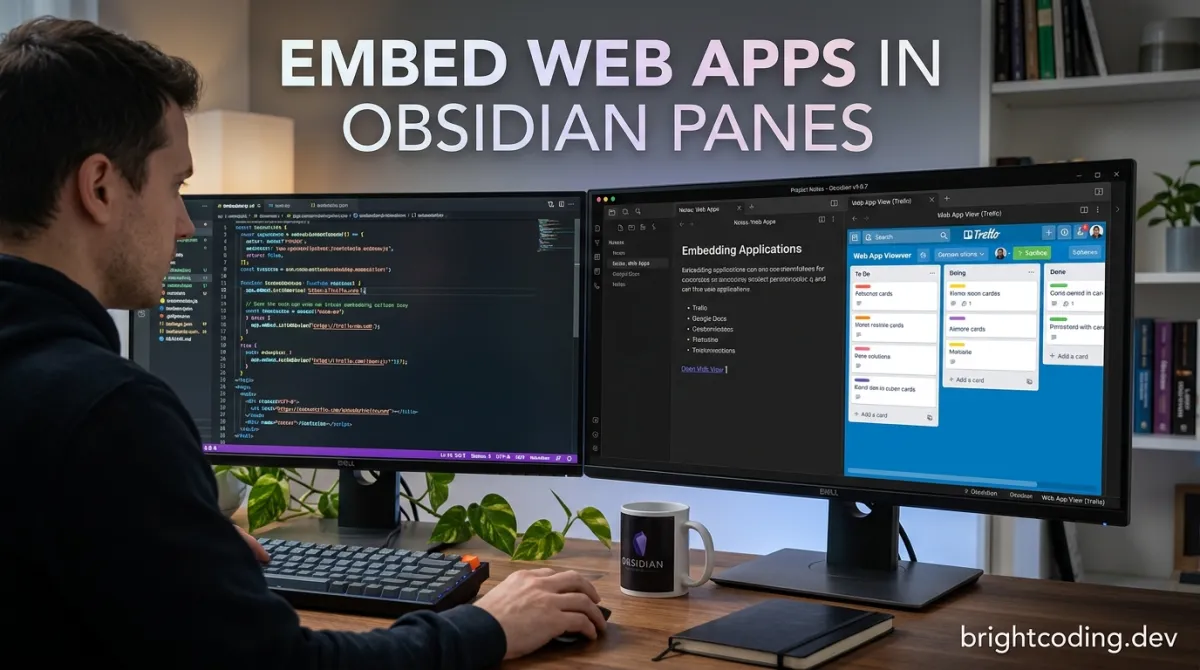
Developers and knowledge workers who live in Obsidian often hit a friction point: their web-based tools—calendars, task managers, reference sites—sit in separate browser tabs, breaking the flow of thought. Context-switching between Obsidian and external apps fragments focus and slows down note-taking workflows. ObsidianCustomFrames addresses this directly by turning web applications into embedded panes inside Obsidian using iframes, with support for custom styling and per-site presets.
This MIT-licensed TypeScript plugin (826 stars, 46 forks) is maintained by Ellpeck and last updated January 19, 2025. It does not try to replace your browser or rebuild these web apps natively. Instead, it provides a lightweight integration layer that keeps your tools visible alongside your notes—whether docked as side panes, centered in the editor, or embedded directly in Markdown↗ Smart Converter documents.
What is Ellpeck/ObsidianCustomFrames?
ObsidianCustomFrames is an Obsidian plugin that renders web applications inside the desktop note-taking environment through sandboxed iframes. Built in TypeScript and released under the MIT License, it is designed for users who want to reduce context switching without leaving Obsidian's interface.
The plugin's core mechanism is straightforward: it creates iframe-based containers for arbitrary URLs, then exposes configuration options for custom CSS injection, ribbon icons, pane positioning, and mobile behavior. This architecture leverages Obsidian's Electron foundation on desktop, which provides relatively unrestricted iframe capabilities compared to standard browser environments.
Ellpeck maintains the project with an open roadmap and acknowledges direct collaboration with lishid, a core Obsidian contributor who helped solve fundamental iframe integration challenges. The plugin ships with seven presets optimized for specific services—including layout adjustments that remove buttons or slim margins for narrow pane configurations.
Relevance today stems from a broader trend: knowledge workers increasingly expect their note-taking environment to serve as a central hub rather than a silo. Custom Frames does not attempt deep API integrations or data synchronization; its value proposition is visual consolidation with minimal setup friction. For developers already managing complex toolchains, this "good enough" integration often beats building custom solutions.
Key Features
Pane and Markdown Embedding Modes The plugin supports two distinct display modes. Pane Mode opens web apps as persistent workspace panels—side panes, centered editors, or custom positions—accessible via the "Custom Frames: Open" command. Markdown Mode allows inline embedding through a custom code block syntax, rendering live web content within documents during Live Preview and Reading modes.
Custom CSS Injection Each frame supports arbitrary CSS overrides. This enables layout modifications—hiding elements, adjusting widths, forcing dark mode—without depending on the target site's native theming. The Google Calendar preset uses this to remove clutter; the Todoist preset slims margins for narrow panels.
Preset System with Community Contributions Seven built-in presets provide tested configurations: Obsidian Forum, Google Keep (narrow pane-optimized), Google Calendar (button removal), Todoist (half-height side panel), Notion, Twitter, and Readwise Daily Review. The codebase explicitly welcomes pull requests for additional presets.
Ribbon Icon Integration Each frame can expose a dedicated ribbon button for one-click access, with options to open in the main editor view or as a side pane.
Mobile Awareness A per-frame "Disable on Mobile" toggle acknowledges platform limitations. Obsidian Mobile does not run on Electron, which restricts iframe capabilities around cookies, CORS, and authentication flows. Rather than fail silently, the plugin lets users explicitly exclude desktop-only frames from mobile rendering.
URL Suffix Support
Markdown embeds accept an optional urlSuffix parameter, enabling deep-linking into specific states—like Google Keep's reminders view—without creating separate frame configurations.
Use Cases
Integrated Task Management Embed Todoist or Google Keep as a persistent side pane while drafting project notes. The narrow-pane optimizations mean these tools remain accessible without consuming excessive horizontal space. The CSS-trimmed interfaces reduce visual noise compared to full browser tabs.
Calendar-Backed Planning Google Calendar's preset removes extraneous buttons and prompts users to close the side panel for cleaner viewing. Positioned as a center pane, it provides scheduling reference during meeting note preparation without Alt-Tab interruptions.
Reference Documentation in Context The Obsidian Forum preset demonstrates embedding community documentation alongside your own notes. For internal teams, similar configurations could surface wikis, API docs, or dashboards directly in relevant project vaults.
Curated Reading Workflows
Readwise Daily Review integration supports spaced repetition reading within your note environment. Combined with Markdown Mode embeds, specific highlights or review sessions can be contextualized within study notes using urlSuffix deep-linking.
Social Media↗ Bright Coding Blog Monitoring The Twitter preset enables lightweight stream monitoring as a narrow side pane—useful for community managers or researchers tracking conversations while documenting findings in Obsidian.
Installation & Setup
ObsidianCustomFrames installs through Obsidian's standard plugin marketplace or manual installation.
Community Plugin Installation (Recommended):
- Open Obsidian Settings → Community Plugins
- Ensure "Safe Mode" is disabled
- Click "Browse" and search for "Custom Frames"
- Install and enable the plugin
Manual Installation (for specific versions or development):
# Clone the repository into your vault's plugins directory
git clone https://github.com/Ellpeck/ObsidianCustomFrames.git

# Navigate to the plugin directory
cd ObsidianCustomFrames

# Install dependencies and build
npm install
npm run build
After installation, configure frames through Settings → Custom Frames:
- Click "Add New Frame"
- Select from presets or choose "Custom" for manual configuration
- Enter the target URL
- Adjust display mode (pane vs. Markdown), CSS overrides, and icon preferences
- Toggle "Disable on Mobile" for authentication-dependent services
For login-dependent services like Google Calendar or Todoist, the README explicitly recommends enabling Obsidian's web viewer core plugin to share session state and handle popup flows within Obsidian rather than delegating to your default browser.
Real Code Examples
The README documents two primary code patterns. These examples are reproduced directly from the source documentation.
Basic Markdown Embed:
```custom-frames
frame: YOUR FRAME'S NAME
```
This minimal syntax transforms into a live iframe when rendered in Live Preview or Reading mode. Replace YOUR FRAME'S NAME with the exact name configured in plugin settings—case-sensitive matching applies.
Advanced Markdown Embed with Styling and Deep-Linking:
```custom-frames
frame: Google Keep
style: height: 1000px;
urlSuffix: #reminders
```
This example demonstrates three documented parameters:
frame: References the preset or custom frame namestyle: Injects inline CSS—in this case, forcing a taller container than defaulturlSuffix: Appends#remindersto Google Keep's base URL, directly opening the reminders view
The urlSuffix mechanism is particularly relevant for services where state lives in URL fragments or query parameters. Rather than maintaining multiple frame configurations for different views, a single frame definition supports dynamic contextualization through Markdown-level parameters.
Pane Mode Invocation:
While not a code block example, the README specifies command palette access: invoke "Custom Frames: Open" and select your configured frame. For frequent access, assign this command to a hotkey through Obsidian's core hotkey settings, or enable the frame's ribbon icon for mouse-driven access.
The README's example set is intentionally focused—these patterns cover the plugin's documented surface area. Advanced configurations (custom JavaScript↗ Bright Coding Blog execution, for instance) appear in the roadmap with explicit security caveats rather than current implementation.
Advanced Usage & Best Practices
CSS Targeting Strategies When writing custom CSS, target the iframe's internal document rather than Obsidian's chrome. Use your browser's developer tools (Ctrl+Shift+I in Obsidian) to inspect the nested document structure. Note that cross-origin iframes may restrict inspection for authenticated sessions—test CSS against logged-out views first, then refine.
Performance Considerations Each active frame maintains a separate browser context. For resource-intensive sites (Notion, complex dashboards), limit concurrent open panes or prefer Markdown embeds that render only when the containing note is active. The README does not document explicit memory limits, but Electron's architecture implies per-frame overhead scales with content complexity.
Authentication Workarounds The known issues section is explicit: external login popups default to your system browser, breaking OAuth flows. The recommended mitigation—enabling Obsidian's web viewer core plugin—is not a Custom Frames feature but a platform-level dependency. Plan authentication setup on desktop before relying on embedded views.
Mobile-First Frame Design For vaults synchronized across devices, design frame configurations assuming mobile failure. Use the "Disable on Mobile" toggle proactively, and consider whether critical workflows depend on frame availability that cannot be guaranteed on iOS or Android.
Comparison with Alternatives
| Feature | ObsidianCustomFrames | Obsidian Web Viewer (Core Plugin) | Embedded Notes via iframe HTML |
|---|---|---|---|
| Integration depth | Dedicated pane + Markdown embeds | Basic web browsing | Manual HTML, no management |
| Custom CSS | Per-frame injection | None | Possible via user snippets |
| Preset system | Built-in, community-extensible | None | None |
| Ribbon icons | Per-frame configurable | None | Manual |
| Mobile support | Explicit disable toggles | Limited by platform | Same limitations |
| Setup friction | Low (GUI configuration) | Very low (built-in) | High (manual HTML) |
| Popup handling | Requires web viewer plugin | Native | Manual |
ObsidianCustomFrames occupies a middle ground: more structured than raw HTML embedding, more opinionated than the core web viewer. The core web viewer suits occasional browsing; Custom Frames suits persistent tool integration with visual customization. Raw HTML remains viable for one-off embeds but lacks management affordances at scale.
FAQ
Is ObsidianCustomFrames free? Yes, released under the MIT License. Optional support is available through the maintainer's Patreon, Ko-fi, or GitHub Sponsors.
Does it work on Obsidian Mobile? Limited. Electron-dependent iframe features fail on mobile; use the "Disable on Mobile" toggle for affected frames.
Can I log into Google services? Yes, on desktop. Enable the web viewer core plugin first to handle OAuth popups within Obsidian.
How do I contribute a new preset?
Submit a pull request modifying src/settings.ts with your tested configuration.
Is custom JavaScript execution supported? Not currently. The roadmap lists this as explored but pending security review.
What Obsidian version is required? Links failing to open were notably improved as of Obsidian 1.3.7; earlier versions may exhibit restricted iframe behavior.
Does it sync frame configurations across devices? Frame definitions are stored in plugin settings; standard Obsidian sync handles these like other configuration data.
Conclusion
Ellpeck/ObsidianCustomFrames solves a specific, well-defined problem: reducing friction between Obsidian and web-based tools without ambitious integration promises. Its 826-star adoption reflects genuine utility for users who value visual consolidation over deep data connectivity.
The plugin best serves developers and knowledge workers already committed to Obsidian's ecosystem, comfortable with CSS customization, and primarily desktop-based. It is less suited for mobile-first workflows or users requiring robust cross-origin authentication without configuration overhead.
The active maintenance (last commit January 2025), open roadmap, and explicit community contribution pathways suggest sustainable development. For the target use case—embedded panes for Google Keep, Todoist, Calendar, and similar tools with lightweight styling control—it delivers precisely what it documents.
Explore the source, review the preset definitions, and install from Obsidian's community plugins or directly at https://github.com/Ellpeck/ObsidianCustomFrames.
Outils recommandés
Explore on the BrightCoding network
Hand-picked resources from our other sites.
saadeghi/daisyui: Pre-Built Components for Tailwind CSS
saadeghi/daisyui is the most popular open-source Tailwind CSS component library with 41K+ GitHub stars. It provides semantic, theme-ready CSS classes for rapid...
loppety/Awesome-Vibecoding-Guide: Monetize AI-Assisted Coding
Open-source monetization playbook for AI-assisted coding. Real commercial project experience covering websites, automations, and micro-SaaS with budget-consciou...
Stop Wrestling with Backend Analytics! SQLRooms Brings DuckDB to React
SQLRooms is a React framework powered by DuckDB-WASM that enables blazing-fast browser-native analytics without any backend. Build privacy-first, AI-assisted da...
Continuez votre lecture
Why Alexandrie is the Ultimate Markdown Note-Taking App

Why CrossPaste is the Ultimate Game Changer for Clipboard Management

Why Chandra is the Ultimate OCR Tool for Handwriting and Tables

Stop Coding Alone: OPC-Skills Gives Your AI Agent Superpowers
Commentaires 0
Aucun commentaire pour l'instant. Soyez le premier à réagir !