Jean: The Desktop AI Agent Interface Devs Are Switching To
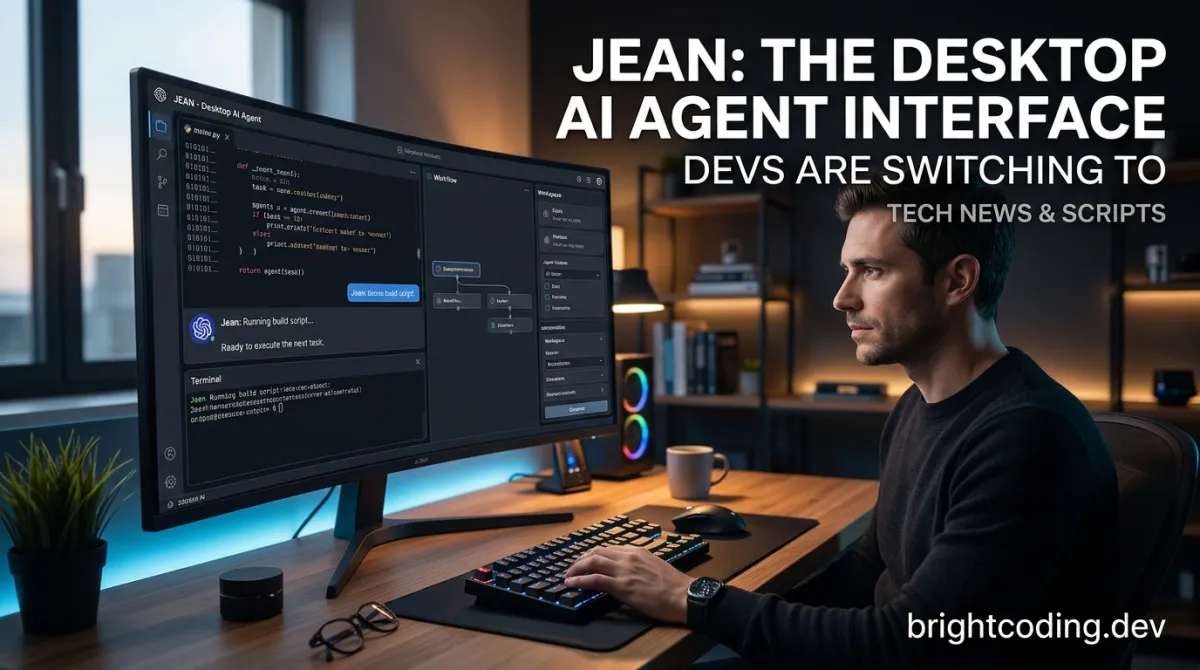
Jean: The Desktop AI Agent Interface Devs Are Switching To
What if your AI coding assistant didn't feel like a chatbot duct-taped to your terminal? What if it actually understood your projects—your git branches, your worktrees, your Linear issues, your GitHub PRs—and wrapped them into a single, blazing-fast native interface?
Here's the brutal truth most developers won't admit: we're wasting hours context-switching between Claude CLI, Codex CLI, Cursor CLI, and OpenCode. Each tool demands its own terminal session. Each project spawns infinite git branches we forget to clean up. Each AI conversation vanishes into the void when we close the wrong window. We're supposed to be 10x developers with AI assistance, yet our workflow looks like a browser tab explosion from 2014.
Enter Jean—the opinionated desktop environment that transforms AI-assisted development from chaos into coherence. Built by Andras Bacsai and the team at CoolLabs, Jean isn't another wrapper. It's a fundamental reimagining of how developers should interact with AI agents, git worktrees, and project context. And it's spreading through developer communities faster than anyone expected.
Ready to stop fighting your tools and start shipping? Let's dissect what makes Jean the Jean AI desktop agent that experienced developers are quietly adopting.
What is Jean?
Jean is a native desktop application built with Tauri v2 that serves as a unified command center for AI-assisted software development. Unlike browser-based alternatives or bare CLI experiences, Jean combines a Rust-powered backend with a React↗ Bright Coding Blog 19 frontend to deliver a fast, secure, and deeply integrated development environment.
The project emerged from a simple observation: AI coding tools were proliferating rapidly, but none addressed the workflow of professional development. Claude CLI excels at reasoning. Codex CLI brings multi-agent collaboration. Cursor CLI offers tight IDE integration. OpenCode provides open-source flexibility. Yet using them together meant managing four separate contexts, four conversation histories, and four sets of project awareness.
Andras Bacsai, also known for Coolify, built Jean with deliberate opinions about this workflow. The result? A single interface where git worktrees become first-class citizens, where AI sessions attach to specific code states, and where project context persists across tool switches.
Jean's architecture reflects modern best practices: Tauri v2 for lightweight native performance (far smaller than Electron), Rust for systems-level operations like git manipulation and terminal management, React 19 with TypeScript for type-safe UI components, Tailwind CSS↗ Bright Coding Blog v4 and shadcn/ui v4 for consistent design, Zustand v5 for state management, TanStack Query for server state synchronization, CodeMirror 6 for code editing, and xterm.js for terminal emulation. This isn't a prototype—it's production-grade engineering.
The project has gained significant traction because it solves real pain points that power users experience daily: worktree sprawl, lost conversation context, and the cognitive overhead of managing multiple AI tools.
Key Features That Separate Jean from the Pack
Jean's feature set reveals its philosophy: context is everything in AI-assisted development. Here's what makes it technically compelling:
Project & Worktree Management
Jean treats git worktrees as foundational infrastructure, not an afterthought. You get multi-project support with linked projects for cross-project context sharing—critical when your API and frontend live in separate repositories but share types or contracts. The git worktree automation handles creation, archival, restoration, and deletion with zero manual git worktree command memorization. Custom project avatars help visually distinguish contexts when rapidly switching between client work and side projects.
Session Management with Execution Modes
This is where Jean's opinions shine. Sessions aren't just chat logs—they're execution contexts with three distinct modes:
- Plan: AI proposes changes; you approve before execution
- Build: Direct execution with guardrails
- Yolo: Maximum velocity for trusted operations
Each mode supports per-mode overrides for thinking/effort levels. Session recaps and digests prevent context loss. Saved contexts with AI summarization mean you can return to a three-day-old conversation and immediately understand where you left off. Archiving with configurable retention keeps your workspace clean without losing history.
Multi-CLI AI Chat
Jean doesn't force vendor choice. It integrates Claude CLI, Codex CLI, Cursor CLI, and OpenCode with unified chat management. Model selection spans Anthropic's full range: Opus 4.5, Opus 4.6, Opus 4.6 1M (for massive context windows), Sonnet 4.6, and Haiku. MCP server support extends capabilities. Codex's multi-agent collaboration works natively. File picker and image attachments, chat search, notification sounds, custom system prompts, and CLI profiles complete the experience.
Magic Commands
These are Jean's productivity superpowers—pre-built AI workflows for common operations:
- Investigate issues, PRs, and CI/CD workflows
- Code review with finding tracking (not just generic comments)
- AI-generated commit messages that actually describe changes
- PR content generation from branch diffs
- Merge conflict resolution with AI assistance
- Release notes generation from commit history
- Customizable per-prompt model/backend/effort selection
GitHub & Linear Integration
The GitHub dashboard provides Issues, PRs, Security Alerts, and Advisories tabs. You can checkout PRs as worktrees automatically, investigate Dependabot alerts with AI context, and auto-archive worktrees on PR merge. Linear integration brings issue investigation and context loading with per-project API key and team configuration.
Developer Tools
A multi-dock terminal supports floating, left, right, and bottom positions. The command palette enables keyboard-driven navigation. Open in editor supports Zed, VS Code, Cursor, Xcode, and IntelliJ. Git operations include status, stash, revert, and fetch/merge with conflict detection. The diff viewer offers unified and side-by-side modes. A file tree with preview and debug panel with token usage tracking round out the toolkit.
Remote Access
Jean includes a built-in HTTP server with WebSocket support for browser-based access. Token-based authentication keeps it secure. This isn't just remote desktop—it's a purpose-built web interface for the same functionality.
Real-World Use Cases Where Jean Dominates
1. The Multi-Project Freelancer
You're juggling three client projects, each with staging and production branches. Without Jean: terminal windows multiply, worktrees accumulate like digital hoarding, and you accidentally commit to the wrong branch twice a week. With Jean: each project gets its own avatar-linked workspace, worktrees auto-archive on merge, and AI sessions maintain per-project context. Cross-project linking shares utility libraries without copy-paste errors.
2. The AI Tool Evaluator
Your team is debating Claude vs. Codex vs. Cursor for the next quarter. Without Jean: install four tools, maintain four terminal histories, lose track of which performed better on which task. With Jean: switch backends mid-session, compare outputs side-by-side, and maintain unified project context regardless of AI provider. No vendor lock-in means decisions based on merit, not migration cost.
3. The Security-Conscious Enterprise Developer
Your organization prohibits cloud-based AI coding assistants. Without Jean: you're stuck with local models that underperform. With Jean: everything runs locally with your CLI installations. The headless mode even lets you expose the interface on internal networks without desktop dependencies. Token-based auth and Tailscale-compatible binding keep access controlled.
4. The Open-Source Maintainer
You manage a popular library with constant PRs, issues, and release cycles. Without Jean: context-switch between GitHub, Linear, terminal, and IDE constantly. With Jean: investigate issues with AI context, checkout PRs as isolated worktrees, generate release notes from commits, and resolve merge conflicts with AI assistance—all without leaving the application.
Step-by-Step Installation & Setup Guide
Jean offers multiple installation paths depending on your platform and preferences.
Option 1: Homebrew (Recommended for macOS)
The fastest path to running Jean:
# Add the CoolLabs tap to Homebrew
brew tap coollabsio/jean

# Install Jean as a cask (prebuilt application)
brew install --cask jean
This downloads the latest release, handles dependencies, and places Jean in your Applications folder.
Option 2: GitHub Releases
Visit the GitHub Releases page for your platform's binary. macOS users should note that unsigned applications may require right-click → Open on first launch.
Option 3: Building from Source
For developers who want the bleeding edge or need to customize:
Prerequisites:
# Install Node.js (LTS recommended)
# https://nodejs.org/

# Install Rust via rustup
curl --proto '=https' --tlsv1.2 -sSf https://sh.rust-lang.org | sh

# Windows only: Install Visual Studio "Desktop development with C++" workload
# Required components:
# - MSVC C++ build tools
# - Windows SDK (provides kernel32.lib and other system libraries)
Build commands:
# Clone the repository
git clone https://github.com/coollabsio/jean.git
cd jean

# Install dependencies
npm install

# Development build with hot reload
npm run tauri dev

# Production build
npm run tauri build
For complete development setup including contribution guidelines, see CONTRIBUTING.md.
Headless Server Configuration
Deploy Jean on a remote machine or CI environment:
# Basic headless mode on localhost
jean --headless --host 127.0.0.1 --port 3456

# Bind to specific interface (e.g., Tailscale IP for secure team access)
jean --headless --host 100.64.0.1 --port 3456

# The --host flag accepts 'localhost' or any IP address
# Binding to a specific IP restricts access to that interface only
Platform Notes
| Platform | Status | Notes |
|---|---|---|
| macOS | ✅ Tested | Primary development platform; full feature support |
| Windows | ⚠️ Not fully tested | Functional but may have edge cases; requires MSVC build tools |
| Linux | 🏘️ Community tested | Verified on Arch Linux + Hyprland/Wayland; other distros welcome feedback |
REAL Code Examples from Jean
Let's examine actual implementation patterns from Jean's repository and documentation.
Example 1: Headless Server Launch
The simplest way to run Jean without a desktop window:
# Launch Jean as a headless HTTP server
jean --headless --host 127.0.0.1 --port 3456
This command demonstrates Jean's dual nature as both desktop application and web service. The --headless flag suppresses the Tauri window entirely, while --host and --port configure the built-in HTTP server. The --host parameter is particularly flexible: pass localhost for local-only access, or specify an IP like your Tailscale address for secure team access without exposing to the public internet. This pattern enables CI/CD integration, remote development environments, and team-shared instances without desktop dependencies.
Example 2: Homebrew Installation
Jean's distribution through Homebrew shows modern macOS packaging:
# Add the third-party tap to Homebrew's formula sources
brew tap coollabsio/jean

# Install using the cask system (precompiled binaries, not source build)
brew install --cask jean
The tap command registers CoolLabs' repository as a trusted formula source. The --cask flag is critical here—it tells Homebrew this is a GUI application with prebuilt binaries, not a command-line tool compiled from source. This distinction means faster installation and automatic placement in /Applications. For enterprise environments, this enables internal mirroring and version pinning through standard Homebrew mechanisms.
Example 3: Windows Prerequisites Documentation
Jean's build requirements reveal cross-platform Rust considerations:
**Windows only**: In the Visual Studio Installer, ensure the
**"Desktop development with C++"** workload is selected, which includes:
- MSVC C++ build tools
- Windows SDK (provides `kernel32.lib` and other system libraries required by Rust)
This documentation snippet exposes important technical details about Tauri's Windows dependencies. Rust on Windows requires the Microsoft Visual C++ toolchain for linking against system libraries. The kernel32.lib reference specifically indicates that Jean's Rust backend makes Windows API calls for process management, file operations, or terminal emulation. Without these libraries, the linker fails with unresolved symbol errors. This is standard for Tauri v2 applications but frequently trips up developers coming from pure JavaScript↗ Bright Coding Blog ecosystems.
Example 4: Technology Stack Architecture
Jean's README presents its stack as a badge of engineering intent:
Tauri v2 · React 19 · Rust · TypeScript · Tailwind CSS v4 · shadcn/ui v4 · Zustand v5 · TanStack Query · CodeMirror 6 · xterm.js
This isn't marketing fluff—it's a technical architecture statement. Let's decode it:
- Tauri v2: Chosen over Electron for 600KB vs. 100MB+ bundle sizes and memory efficiency
- React 19: Latest concurrent features for responsive UI during heavy operations
- Rust: Systems programming for git operations, terminal management, and native APIs
- TypeScript: End-to-end type safety across the Rust-JavaScript boundary via Tauri's IPC
- Tailwind CSS v4 + shadcn/ui v4: Utility-first styling with accessible, composable components
- Zustand v5: Lightweight state management without Redux boilerplate
- TanStack Query: Server state synchronization for GitHub/Linear API data
- CodeMirror 6: Extensible code editor for file previews and diffs
- xterm.js: Full terminal emulation in the browser for the multi-dock terminal feature
This stack represents intentional tradeoffs: maximum performance where it matters (Rust/Tauri), developer experience where it counts (TypeScript/React), and ecosystem maturity for complex components (CodeMirror, xterm.js).
Advanced Usage & Best Practices
Worktree Hygiene with Auto-Archive
Enable auto-archive on PR merge to prevent worktree accumulation. Combined with retention settings, this creates a self-cleaning workspace. For long-running feature branches, use linked projects to share context with dependent repositories without monorepo conversion.
Execution Mode Selection Strategy
Develop a personal rubric for mode selection:
- Plan mode for unfamiliar codebases, complex refactors, or production hotfixes
- Build mode for routine feature work with established patterns
- Yolo mode for documentation updates, test additions, or trusted scaffolding
Override thinking levels per-mode: use maximum reasoning for Plan, balanced for Build, minimal for Yolo.
Token Usage Optimization
The debug panel's token usage tracking isn't just diagnostic—it's educational. Monitor which prompts consume excessive tokens and refine them. Use saved contexts with AI summarization to compress conversation history instead of carrying full transcripts.
Remote Access Security
When using headless mode:
- Bind to specific IPs, not
0.0.0.0 - Use Tailscale or WireGuard for network access
- Rotate tokens regularly
- Enable firewall rules for the specific port
Custom CLI Profiles
Create profiles per-project with different system prompts, model selections, and MCP server configurations. A frontend project might use Sonnet 4.6 with React-specific prompting, while a data pipeline uses Opus 4.6 with pandas/numpy context.
Comparison with Alternatives
| Feature | Jean | Claude Desktop | Cursor IDE | Generic Terminal |
|---|---|---|---|---|
| Multi-AI backend | ✅ Claude, Codex, Cursor, OpenCode | ❌ Claude only | ❌ Cursor only | ⚠️ Manual switching |
| Git worktree management | ✅ Native, automated | ❌ None | ⚠️ Basic git UI | ❌ Manual CLI |
| Native performance | ✅ Tauri (Rust) | ⚠️ Electron | ⚠️ Electron | ✅ Terminal native |
| GitHub/Linear integration | ✅ Built-in | ❌ None | ⚠️ Extensions | ❌ Manual |
| Headless/web access | ✅ Built-in HTTP server | ❌ None | ❌ None | ⚠️ SSH + tmux |
| Session persistence | ✅ AI-summarized contexts | ⚠️ Basic history | ⚠️ Project-scoped | ❌ Shell history |
| Vendor lock-in | ❌ None | ⚠️ Anthropic | ⚠️ Cursor | ✅ None |
| Bundle size | ✅ ~3-5MB | ⚠️ ~200MB | ⚠️ ~150MB | ✅ N/A |
| Open source | ✅ MIT | ❌ Proprietary | ❌ Proprietary | ✅ Varies |
When to choose Jean: You use multiple AI tools, value git worktree workflows, want unified project context, or need remote/headless access.
When to choose alternatives: You're deeply embedded in Cursor's IDE features, require Claude's official desktop experience, or prefer minimal terminal-only workflows.
FAQ
Is Jean free and open source?
Yes. Jean is fully open source under the MIT license. Download, modify, and self-host without restrictions. The repository is available at github.com/coollabsio/jean.
Do I need paid AI subscriptions to use Jean?
Jean is a interface—it requires your own CLI installations and API keys. If you have Claude CLI, Codex CLI, Cursor CLI, or OpenCode installed and configured, Jean connects to them. It doesn't include AI access itself.
How does Jean differ from using these CLIs in a terminal?
Jean adds project-aware context management, git worktree visualization, persistent sessions with AI summarization, integrated GitHub/Linear data, and unified chat history across AI backends. The terminal is a generic shell; Jean is a purpose-built development environment.
Can I use Jean on Windows or Linux?
macOS is fully tested and primary. Windows builds exist but aren't fully tested—expect potential edge cases. Linux has community testing on Arch Linux with Hyprland/Wayland. Contributions for broader Linux support are welcome.
What happens to my data? Is anything sent to CoolLabs?
Nothing leaves your machine except direct API calls to AI providers (Anthropic, OpenAI, etc.) from your own accounts. Jean runs locally with no telemetry or cloud dependency. The headless mode's HTTP server is self-hosted.
How do I contribute or report issues?
See CONTRIBUTING.md for development setup, coding standards, and pull request guidelines. Issues and feature requests go through GitHub Issues.
Can Jean replace my IDE?
Jean complements rather than replaces IDEs. It includes "Open in editor" support for Zed, VS Code, Cursor, Xcode, and IntelliJ. Think of it as your AI operations center, not your code editor.
Conclusion
Jean represents something rare in the current AI tooling explosion: intentional design for professional workflows. It doesn't chase every feature—it solves specific, painful problems with architectural conviction. The git worktree integration alone justifies adoption for developers managing multiple branches. The multi-backend support future-proofs against AI vendor shifts. The headless mode enables deployment scenarios no competitor touches.
After reviewing the codebase, architecture, and feature set, my assessment is clear: Jean is the most thoughtfully engineered AI development environment currently available. It trades the flash of AI demos for the substance of sustainable productivity. The Rust/React stack delivers performance that Electron-based alternatives can't match. The open-source license ensures longevity beyond any single company's strategy.
If you're currently juggling multiple AI CLI tools, drowning in git worktree sprawl, or seeking a unified project context for AI-assisted development, Jean deserves your immediate attention.
Get started now: Download from jean.build or install via Homebrew with brew tap coollabsio/jean && brew install --cask jean. Explore the source, contribute to the roadmap, and join the growing community of developers who've stopped fighting their tools—and started shipping.
Star the repository at github.com/coollabsio/jean to follow development and show your support.
Built with Tauri v2 · React 19 · Rust · TypeScript. Maintained by Andras Bacsai and contributors.
Outils recommandés
Explore on the BrightCoding network
Hand-picked resources from our other sites.
Firecrawl CLI: Stop Writing Scrapers, Start Extracting Data
Firecrawl CLI transforms web data extraction from a week-long engineering project into a single terminal command. Discover how to scrape, search, crawl, and dep...
Stop Trusting One AI Opinion! counselors Runs 5 Agents in Parallel
counselors by Aaron Francis fans out prompts to multiple AI coding agents in parallel. Stop trusting single AI opinions—get diverse perspectives from Claude, Co...
Anthropic Blocked OpenCode Because of This: Oh My OpenAgent Exposed
Discover oh-my-openagent (OmO), the AI orchestration harness so disruptive that Anthropic allegedly blocked OpenCode because of it. Install with one command, ty...
Continuez votre lecture
Why Alexandrie is the Ultimate Markdown Note-Taking App

Why CrossPaste is the Ultimate Game Changer for Clipboard Management
Why Chandra is the Ultimate OCR Tool for Handwriting and Tables
Stop Coding Alone: OPC-Skills Gives Your AI Agent Superpowers
Commentaires 0
Aucun commentaire pour l'instant. Soyez le premier à réagir !