Run Linux Desktops in Your Browser with docker-webtop
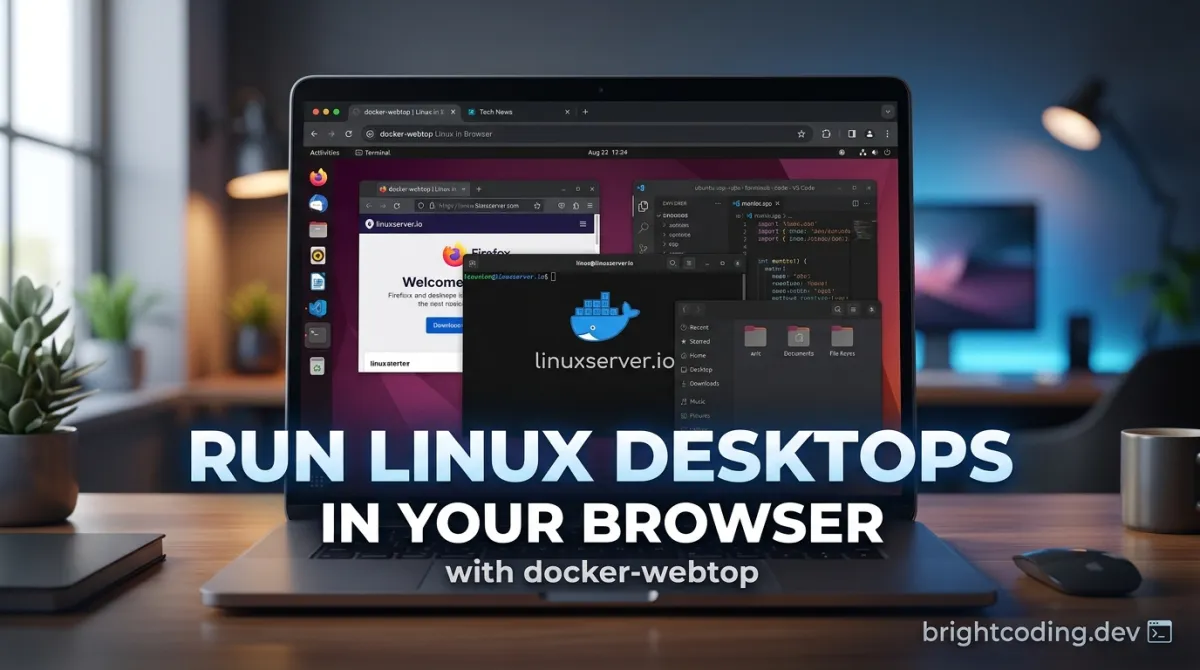
Run Linux Desktops in Your Browser with docker↗ Bright Coding Blog-webtop
What if you could spin up a full Linux desktop environment—XFCE, KDE, i3, or MATE—without installing a single package on your local machine? No VMs to configure. No dual-boot headaches. Just open a browser tab and boom: you're inside a blazing-fast, GPU-accelerated Linux workspace.
Sounds insane? It's not. It's docker-webtop, and it's about to change how you think about remote development, browser-based workflows, and containerized desktops forever.
Developers have been stuck in a rut. Either you wrestle with heavy virtual machines that devour RAM, or you settle for stripped-down browser IDEs that feel like coding through a keyhole. But what if the middle ground wasn't a compromise at all? What if it was actually better than both extremes? That's exactly what the LinuxServer.io team built with docker-webtop—a Docker container that streams complete Linux desktop environments directly to your browser with near-native performance. No client software. No plugins. Just HTTPS and WebRTC magic.
If you're tired of "it works on my machine" or need isolated dev environments that your entire team can access from anywhere, keep reading. This might be the most underrated tool in modern DevOps↗ Bright Coding Blog.
What is linuxserver/docker-webtop?
docker-webtop is an open-source Docker image maintained by LinuxServer.io—the legendary team behind some of the most polished containerized applications in the self-hosting ecosystem. At its core, webtop packages full Linux desktop environments (DEs) into containerized applications accessible through any modern web browser.
The project supports four major Linux distributions: Alpine (lightweight), Ubuntu (versatile), Fedora (bleeding-edge), and Arch (rolling release). Within each distro, you can choose from multiple officially supported desktop environments: XFCE (traditional and lightweight), KDE Plasma (feature-rich and modern), MATE (classic GNOME 2 feel), and i3 (tiling window manager for power users). That's 16 distinct combinations—and that's before you start customizing.
What makes docker-webtop genuinely special isn't just the concept. It's the execution. The container leverages Selkies, a modern WebRTC-based streaming stack that replaced the older KasmVNC foundation in recent versions. This shift brought Wayland support, zero-copy GPU encoding, and dramatically reduced latency. The LinuxServer.io team didn't just wrap a VNC client in a browser tab—they rebuilt the entire pipeline for performance.
The project is actively maintained with weekly base OS updates, regular security patches, and a thriving community across Discord, Discourse, and GitHub. With thousands of Docker pulls and a robust CI pipeline, docker-webtop isn't experimental—it's production-ready infrastructure disguised as a clever hack.
Key Features That Make docker-webtop Extraordinary
Let's dissect what separates docker-webtop from every other "browser desktop" solution you've probably abandoned.
Multi-Distro, Multi-DE Matrix: Unlike competitors that lock you into a single OS or desktop, webtop offers genuine choice. Need a minimal Alpine+i3 setup for a headless server admin panel? Done. Want Ubuntu+KDE for a full creative workstation? One command. The version tags are granular and explicit—ubuntu-kde, fedora-xfce, arch-i3—so you know exactly what you're deploying.
Wayland-First Architecture with X11 Fallback: The 2025 rebase to Selkies made Wayland the default, not an afterthought. This matters because Wayland's compositor model enables true zero-copy GPU encoding—frames rendered on the GPU never touch system RAM before being encoded and streamed. The result? Sub-30ms latency and CPU usage that stays remarkably low even during heavy 3D workloads. Older systems without AVX2 automatically fall back to X11, so nothing breaks.
Hardware Acceleration That Actually Works: Intel, AMD, and Nvidia GPUs are all supported (though Nvidia requires proprietary drivers 580+ and specific kernel parameters). The dual-GPU configuration—separating rendering (DRINODE) from encoding (DRI_NODE)—lets you dedicate one GPU to running applications and another to streaming, or enable zero-copy when both point to the same device. The AUTO_GPU=true flag handles detection automatically for simpler setups.
Docker-in-Docker (DinD) Privilege: With --privileged, webtop spawns its own Docker daemon. This is massive for CI/CD pipelines, testing containerized applications, or teaching Docker without polluting the host. Mount the host socket instead (-v /var/run/docker.sock:/var/run/docker.sock) and you can manage host containers from inside your browser desktop.
Enterprise-Grade Hardening: The HARDEN_DESKTOP and HARDEN_OPENBOX variables let you lock down environments for single-application kiosk mode—disabling sudo, terminals, close buttons, even right-click menus. Perfect for secure remote workstations or embedded dashboards.
PRoot Persistence: Native package installs vanish on container recreation. But proot-apps installs portable applications to your persistent /config volume, surviving updates and re-deployments. Your tools stay yours.
Real-World Use Cases Where docker-webtop Dominates
Remote Development Environments: Imagine onboarding a new developer in minutes, not days. Spin up ubuntu-xfce with pre-configured IDEs, push their dotfiles to /config, and share the URL. They get a fully equipped Linux workstation from any Chromebook, iPad, or locked-down corporate Windows machine. No VPN client installation. No SSH key wrestling. Just a browser.
GPU-Accelerated ML/AI Workstations: Data scientists often need Linux-specific CUDA toolchains but run Windows or macOS locally. Deploy ubuntu-kde with AUTO_GPU=true, pass through an Nvidia card, and suddenly you have a remote Jupyter+PyTorch environment with native GPU acceleration—streamed to whatever device is handy. The zero-copy encoding means you're not sacrificing interactivity for compute.
Secure Sandboxed Browsing: Combine docker-webtop with SealSkin for military-grade isolation. Click suspicious links in your daily browser? They open in a disposable, isolated webtop container instead. Malware, trackers, and exploits are contained in a throwaway environment that gets recreated on demand. The browser extension intercepts downloads and redirects them to your secure remote instance.
Legacy Application Hosting: That critical business app requiring CentOS 7 and a specific Firefox version? Containerize it in debian-xfce, harden the desktop, and expose it as a web service. No more maintaining ancient physical machines or VM sprawl. Updates happen by rebuilding the container.
Education and Workshops: Teaching Linux fundamentals? Students access identical environments from any device. No "my laptop can't run VirtualBox" excuses. Instructors can snapshot working states, distribute compose files, and guarantee consistency across 500 students.
Step-by-Step Installation & Setup Guide
Ready to deploy your first browser desktop? Here's the complete path from zero to streaming GUI.
Prerequisites
- Docker Engine 20.10+ or Docker Desktop
- Docker Compose v2 (recommended)
- For GPU acceleration: Intel/AMD/Nvidia GPU with appropriate drivers
- ~2GB RAM minimum (4GB+ recommended for heavy DEs like KDE)
Basic Deployment with Docker Compose
Create a compose.yaml in your project directory:
---
services:
  webtop:
    image: lscr.io/linuxserver/webtop:latest  # Defaults to XFCE on Alpine
    container_name: webtop
    environment:
      - PUID=1000        # Match your host user ID
      - PGID=1000        # Match your host group ID
      - TZ=Etc/UTC       # Your timezone
    volumes:
      - ./webtop-data:/config  # Persistent home directory
    ports:
      - 3000:3000        # HTTP (must be reverse-proxied)
      - 3001:3001        # HTTPS (direct access)
    shm_size: "1gb"       # Critical for Chrome/Electron apps
    restart: unless-stopped
Launch with:
docker compose up -d
Access at https://localhost:3001/. Accept the self-signed certificate warning (or place behind a reverse proxy with valid TLS).
GPU-Accelerated Setup (Intel/AMD)
For hardware-accelerated encoding and rendering:
---
services:
  webtop:
    image: lscr.io/linuxserver/webtop:ubuntu-kde  # Wayland-enabled tag
    container_name: webtop-gpu
    environment:
      - PUID=1000
      - PGID=1000
      - TZ=Etc/UTC
      - PIXELFLUX_WAYLAND=true    # Enable Wayland mode
      - DRINODE=/dev/dri/renderD128   # Rendering GPU
      - DRI_NODE=/dev/dri/renderD128  # Encoding GPU (same = zero-copy)
    volumes:
      - ./webtop-data:/config
    ports:
      - 3001:3001
    devices:
      - /dev/dri:/dev/dri       # Pass GPU into container
    shm_size: "1gb"
    restart: unless-stopped
Verify zero-copy is active by checking container logs for GPU initialization messages.
Nvidia GPU Setup (More Complex)
Critical prerequisites that trip up most users:
- Install proprietary drivers 580+ using Nvidia's
.runinstaller (not distro packages) - Add kernel parameters:
nvidia-drm.modeset=1 nvidia_drm.fbdev=1 - Insert a dummy HDMI/DisplayPort plug on headless servers (DRM initialization requirement)
- Configure Docker Nvidia runtime:
sudo nvidia-ctk runtime configure --runtime=docker
sudo systemctl restart docker
Then deploy with Docker's GPU reservation syntax:
---
services:
  webtop:
    image: lscr.io/linuxserver/webtop:ubuntu-kde
    # Note: Alpine-based images DO NOT support Nvidia
    environment:
      - PIXELFLUX_WAYLAND=true
      - DRINODE=/dev/dri/renderD128
      - DRI_NODE=/dev/dri/renderD128
    deploy:
      resources:
        reservations:
          devices:
            - driver: nvidia
              count: 1
              capabilities: [compute, video, graphics, utility]
    ports:
      - 3001:3001
    volumes:
      - ./webtop-data:/config
    shm_size: "1gb"
Reverse Proxy Configuration
For production exposure, always use a reverse proxy. The LinuxServer.io SWAG container handles this elegantly:
# Add to your SWAG compose network, then create
# ./swag/nginx/proxy-confs/webtop.subdomain.conf
server {
    listen 443 ssl;
    listen [::]:443 ssl;
    server_name desktop.*;
    include /config/nginx/ssl.conf;
    client_max_body_size 0;
    location / {
        include /config/nginx/proxy.conf;
        resolver 127.0.0.11 valid=30s;
        set $upstream_app webtop;
        set $upstream_port 3000;
        set $upstream_proto http;
        proxy_pass $upstream_proto://$upstream_app:$upstream_port;
        proxy_buffering off;
    }
}
REAL Code Examples from the Repository
Let's examine actual configurations from the docker-webtop documentation, with detailed breakdowns of what each parameter controls.
Example 1: Basic Docker Compose (Foundation Pattern)
---
services:
  webtop:
    image: lscr.io/linuxserver/webtop:latest
    container_name: webtop
    environment:
      - PUID=1000
      - PGID=1000
      - TZ=Etc/UTC
    volumes:
      - /path/to/data:/config
    ports:
      - 3000:3000
      - 3001:3001
    shm_size: "1gb"
    restart: unless-stopped
Line-by-line analysis: The PUID/PGID mapping prevents permission nightmares—files written to /config on the host will be owned by your actual user, not root or some mystery UID. The shm_size: "1gb" is non-negotiable for modern browsers; without sufficient shared memory, Chrome and Electron apps crash with obscure GPU process failures. Port 3000 serves HTTP (insecure, needs proxying), while 3001 serves HTTPS with a self-signed certificate. The latest tag resolves to alpine-xfce by default—explicit tags prevent surprise DE changes.
Example 2: GPU-Accelerated Intel/AMD Deployment
    devices:
      - /dev/dri:/dev/dri
    environment:
      - PIXELFLUX_WAYLAND=true
      # Optional: Specify device if multiple exist (IE: /dev/dri/renderD129)
      - DRINODE=/dev/dri/renderD128
      - DRI_NODE=/dev/dri/renderD128
Deep dive: This snippet configures the zero-copy pipeline. The devices block performs a bind-mount of the kernel's Direct Rendering Infrastructure nodes into the container—without this, the GPU is invisible. Setting both DRINODE and DRI_NODE to identical paths triggers zero-copy encoding: the GPU renders frames directly into encoder-accessible memory, eliminating the CPU readback that plagues VNC and traditional remote desktop. The comment about renderD129 matters for multi-GPU workstations—you might render on a dedicated graphics card while encoding on integrated graphics, though same-device configuration always wins for latency.
Example 3: Nvidia Compose with Runtime Reservation
---
services:
  webtop:
    image: lscr.io/linuxserver/webtop:latest
    environment:
      - PIXELFLUX_WAYLAND=true
      # Ensure these point to the rendered node injected by the runtime (usually renderD128)
      - DRINODE=/dev/dri/renderD128
      - DRI_NODE=/dev/dri/renderD128
    deploy:
      resources:
        reservations:
          devices:
            - driver: nvidia
              count: 1
              capabilities: [compute,video,graphics,utility]
Critical implementation notes: The deploy.resources.reservations.devices syntax is Docker's modern GPU allocation API, replacing the older --gpus flag in Compose. The capabilities array is exhaustive and mandatory—omitting video disables NVENC encoding, graphics disables EGL rendering, and compute breaks CUDA applications. The comment about "rendered node injected by the runtime" is crucial: Nvidia's container toolkit creates symlinks that may differ from bare-metal /dev/dri paths. Always verify with ls -la /dev/dri/ inside a test container. Also note this example uses latest which is Alpine-based—this will fail for Nvidia. You must substitute ubuntu-kde, fedora-xfce, or another non-Alpine tag.
Example 4: PRoot Application Persistence
proot-apps install filezilla
Why this matters: Standard apt-get install inside the container modifies the overlay filesystem. When you update the image and recreate the container, those changes evaporate. proot-apps installs portable, relocatable binaries into your persistent /config volume—specifically /config/.local/share/proot-apps/. The applications run through PRoot, a user-space chroot that intercepts filesystem calls and redirects them. Performance is near-native for most tools, and your applications survive image updates, migrations between hosts, even distro switches (Alpine to Ubuntu) without reinstallation.
Example 5: Native Package Installation (Non-Persistent)
  environment:
    - DOCKER_MODS=linuxserver/mods:universal-package-install
    - INSTALL_PACKAGES=libfuse2|git|gdb
Use case analysis: The DOCKER_MODS system injects initialization scripts that run before the main service starts. Here, universal-package-install parses INSTALL_PACKAGES at container startup, installing system packages via the native package manager. The pipe delimiter | separates packages. This is ideal for CI pipelines where you need specific debug tools (gdb) or dependencies (libfuse2 for AppImage support) without building a custom image. The tradeoff: slower startup times and non-persistent installs. For long-lived workstations, prefer PRoot or custom image builds.
Advanced Usage & Best Practices
Security Hardening for Internet Exposure: Never expose port 3001 directly to the internet without authentication. At minimum, set CUSTOM_USER and PASSWORD for basic HTTP auth. Better: place behind SWAG with Authelia or OAuth2. For maximum lockdown, enable HARDEN_DESKTOP=true—this chains DISABLE_SUDO, DISABLE_TERMINALS, and DISABLE_OPEN_TOOLS, plus hides file transfer and application sidebar sections.
Performance Optimization: If text appears blurry (especially light-on-dark themes), enable FullColor 4:4:4 in the sidebar or switch to JPEG encoding. On Intel/AMD, this forces CPU encoding—acceptable for text editing, unacceptable for gaming. For 3D workloads, accept the slight chroma subsampling of default H.264 to maintain GPU encoding.
Resolution Management: The virtual display defaults to 16K (15360x8640)—absurd overkill that wastes GPU memory. Constrain with MAX_RES=3840x2160 or force specific dimensions:
environment:
  - SELKIES_MANUAL_WIDTH=1920
  - SELKIES_MANUAL_HEIGHT=1080
  - MAX_RES=1920x1080
Multi-User Collaboration: The Selkies backend supports sharing links with configurable permissions. SELKIES_ENABLE_COLLAB=true creates read-write shared sessions, while SELKIES_ENABLE_SHARED=true generates view-only links. Combine with SELKIES_ENABLE_PLAYER2 through PLAYER4 for local multiplayer gaming over streamed desktops.
Automated Updates: The LinuxServer.io team recommends Diun for image update notifications. Configure it to watch lscr.io/linuxserver/webtop and alert you when new base images drop. Never use auto-updaters that recreate containers blindly—you'll lose running state.
Comparison with Alternatives
| Feature | docker-webtop | Kasm Workspaces | Apache Guacamole | NoVNC + Container |
|---|---|---|---|---|
| Browser Access | ✅ Native WebRTC | ✅ Native | ✅ HTML5 | ✅ WebSocket VNC |
| GPU Acceleration | ✅ Zero-copy Wayland | ✅ (Limited) | ❌ Software only | ❌ Software only |
| Distro/DE Choice | ✅ 16+ combinations | ✅ Pre-built images | ❌ Host-dependent | ❌ Manual setup |
| Self-Hosted Cost | ✅ Free, open source | 💰 Enterprise licensing | ✅ Free | ✅ Free |
| Container Privilege | ✅ Optional DinD | ❌ Isolated only | N/A (agent-based) | ❌ No DinD |
| Latency | ✅ <30ms typical | ⚠️ 50-100ms | ❌ 100-300ms | ❌ 100-500ms |
| Authentication Options | ✅ Basic + Reverse Proxy | ✅ Built-in SSO | ✅ Multiple | ❌ Manual |
| Persistent Apps | ✅ PRoot system | ❌ Image rebuild | N/A | ❌ Manual |
| Mobile/Touch Support | ✅ Virtual trackpad, gamepad | ⚠️ Limited | ✅ Basic | ❌ Poor |
Why docker-webtop wins: The combination of zero-copy GPU streaming, genuine multi-distro flexibility, and Docker-in-Docker privilege creates capabilities no competitor matches at any price point. Kasm comes closest but locks advanced features behind enterprise pricing. Guacamole's protocol translation adds unacceptable latency for interactive work. Raw NoVNC requires endless manual configuration for features webtop provides out-of-the-box.
FAQ
Is docker-webtop secure for production use?
The container itself is secure when properly configured. The critical rule: never expose unauthenticated instances to the internet. Use reverse proxies with robust authentication, enable hardening variables for untrusted users, and understand that --privileged mode grants significant host access. For sensitive environments, run on isolated networks.
Why does my GPU acceleration fail on Alpine images? Nvidia's proprietary drivers are incompatible with musl libc used by Alpine Linux. Use Ubuntu, Fedora, or Debian-based tags for Nvidia GPU passthrough. Intel and AMD open-source drivers work across all distros.
Can I run docker-webtop on a headless server without a monitor? Absolutely—this is the primary use case. For Nvidia GPUs, insert a dummy HDMI/DisplayPort plug (cheap on Amazon) to initialize DRM. Intel/AMD cards generally don't require this. The desktop streams entirely through the browser; no physical display needed.
How do I persist installed applications across updates?
Use proot-apps install <app> for persistent, user-space applications. For system-level packages that must integrate deeply, build a custom image using the provided Dockerfile as base, or accept that native installs via universal-package-install mod are ephemeral.
What's the difference between Wayland and X11 modes?
Wayland (PIXELFLUX_WAYLAND=true) enables zero-copy GPU encoding, better security, and modern compositor features. It requires AVX2 CPU support on x86_64. X11 falls back automatically on older hardware and offers broader legacy application compatibility. GPU acceleration for X11 is deprecated—future development focuses exclusively on Wayland.
Can multiple users share a single webtop session?
Yes, through Selkies sharing features. Generate collaborative (read-write) or view-only links via environment variables. For true multi-user isolation with separate desktops, deploy multiple container instances with distinct /config volumes.
Why is my text blurry in dark themes? Default H.264 encoding uses chroma subsampling (4:2:0) that degrades color detail. Enable FullColor 4:4:4 in the sidebar, or switch to JPEG encoding. On Intel/AMD, this forces CPU encoding with performance tradeoffs. Nvidia handles 4:4:4 in zero-copy mode exclusively.
Conclusion
docker-webtop isn't just a clever container—it's a fundamental reimagining of what remote computing can be. By marrying Docker's isolation with modern WebRTC streaming, the LinuxServer.io team eliminated the friction that made browser desktops a novelty rather than a tool. Whether you're building ephemeral dev environments, securing user browsing with SealSkin isolation, or deploying GPU-accelerated workstations that teams access from tablets, webtop delivers capabilities that were science fiction five years ago.
The project rewards experimentation. Start with the basic Alpine+XFCE compose file. Graduate to GPU-accelerated Ubuntu+KDE. Harden it for kiosk mode. Discover how PRoot persistence changes your update workflow. Each layer reveals more power without adding complexity.
The future of development isn't heavier local installations—it's lightweight, streaming, instantly available environments that follow you across devices. docker-webtop is already living in that future. The only question is whether you'll join it.
Ready to transform your workflow? Grab the official image, star the repository, and join the LinuxServer.io Discord for real-time support. Your next Linux desktop is one docker compose up away.
Star and follow linuxserver/docker-webtop on GitHub for the latest releases, and consider supporting the team through Open Collective.
Outils recommandés
Explore on the BrightCoding network
Hand-picked resources from our other sites.
bunkerity/bunkerweb: NGINX-Based Open-Source WAF for Cloud-Native Security
bunkerity/bunkerweb is an open-source, NGINX-based Web Application Firewall with 10,721 GitHub stars. It integrates ModSecurity, OWASP CRS, and Let's Encrypt au...
2FAuth: The Self-Hosted 2FA Manager Every Developer Needs
Discover 2FAuth, the open-source self-hosted 2FA manager that puts you in control of your authentication codes. Learn installation, security hardening, and real...
Termix: The Self-Hosted SSH Platform Server Management
Termix is a revolutionary open-source server management platform that combines SSH terminal access, tunneling, file management, and Docker control in one sleek,...
Continuez votre lecture
Build a Secure SSH Workspace with SFTP & Terminals

Build Circuit Boards with Code: Guide to Software-Driven PCB Design (atopile Tutorial 2026)

Why PatchMon is the Ultimate Game Changer for Linux Patch Management

Stop Coding Alone: OPC-Skills Gives Your AI Agent Superpowers
Commentaires 0
Aucun commentaire pour l'instant. Soyez le premier à réagir !