Stop Juggling AI Agents! CCManager Handles Them All
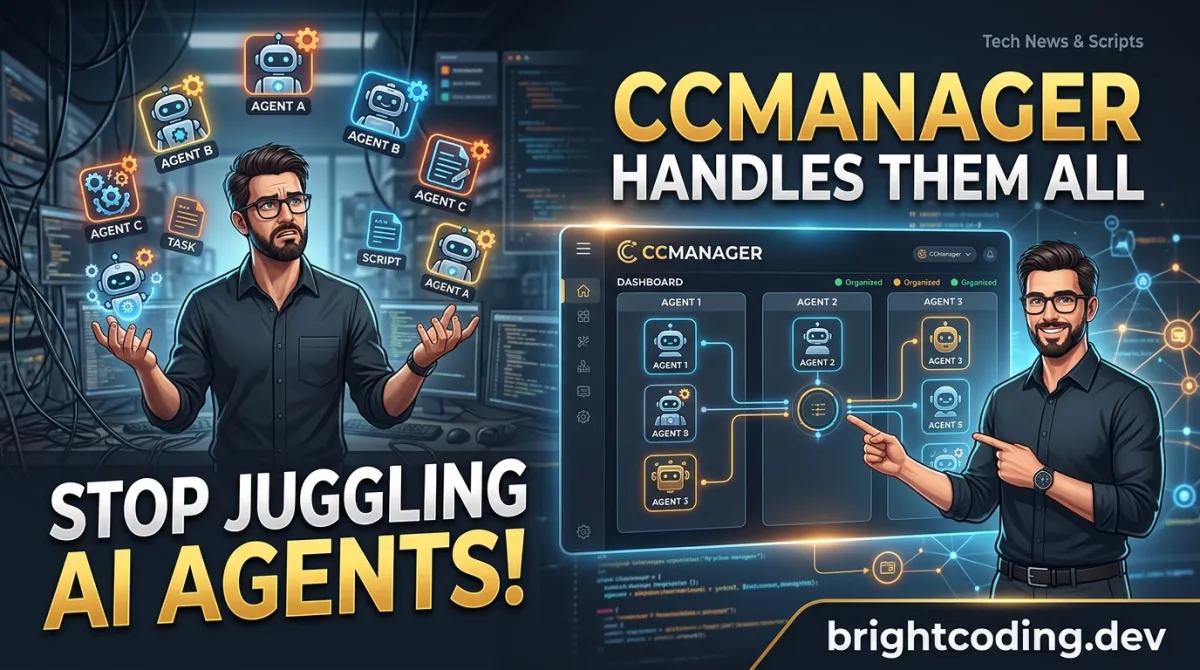
Stop Juggling AI Agents! CCManager Handles Them All
What if I told you that your biggest productivity killer isn't slow code reviews, flaky tests, or even that one legacy service nobody dares touch? It's context switching between AI coding agents.
Picture this: You're deep in a feature branch with Claude Code, but urgently need to hotfix production. You fire up another terminal, lose your conversation thread, and spend twenty minutes re-explaining your codebase to Gemini CLI. Meanwhile, your original Claude session times out. Your flow? Shattered. Your sanity? Questionable.
Sound painfully familiar? You're not alone. The explosion of AI coding assistants—Claude Code, Gemini CLI, Codex CLI, Cursor Agent, Copilot CLI, and more—has created a new developer nightmare: agent sprawl. Each tool demands its own terminal, its own context, its own piece of your attention.
But here's what top developers quietly figured out. There's a tool that transforms this chaos into effortless orchestration. CCManager—the open-source CLI application that manages multiple AI coding assistant sessions across Git worktrees and projects. No tmux hacks. No terminal juggling. Just pure, streamlined productivity.
Ready to reclaim your focus? Let's dive into why CCManager is about to become your most indispensable development tool.
What is CCManager?
CCManager is a CLI application built by developer kbwo that solves one of the most overlooked problems in modern development: managing multiple AI coding assistant sessions across Git worktrees and projects. Think of it as your mission control center for AI agents.
Born from the friction of switching between AI tools while maintaining parallel development contexts, CCManager has rapidly gained traction among developers who refuse to let tooling complexity kill their flow state. It's been recognized in the Awesome Gemini CLI collection—a testament to its growing influence in the AI-assisted development ecosystem.
Unlike traditional terminal multiplexers that force you to become a tmux wizard, CCManager is completely self-contained. It works out of the box with zero configuration for basic usage, yet scales to sophisticated workflows with hooks, auto-approval, and devcontainer integration.
The genius of CCManager lies in its universal adapter pattern. Rather than locking you into a single AI assistant, it embraces the entire landscape: Claude Code, Gemini CLI, Codex CLI, Cursor Agent, Copilot CLI, Cline CLI, OpenCode, and Kimi CLI. Each gets tailored state detection, so you always know whether your agent is idle, busy, or waiting for your input.
Why is it trending now? Because the AI coding tool market has exploded, and developers are tired of vendor lock-in. They want Claude's reasoning for architecture, Gemini's speed for boilerplate, and Codex for OpenAI-specific features—sometimes all in the same hour. CCManager makes this polyglot AI workflow not just possible, but effortless.
Key Features That Change Everything
CCManager isn't just another terminal wrapper. It's a purpose-built orchestration layer with capabilities that will make you wonder how you coded without them.
Parallel Session Management Across Git Worktrees
Run multiple AI assistant sessions simultaneously across different Git worktrees. Each worktree maintains its own isolated context, so your feature branch Claude session never interferes with your hotfix Gemini session. The visual status indicators—busy, waiting, idle—let you instantly see which sessions need attention without switching contexts.
True Multi-Project Support
Manage multiple git repositories from a single interface. Set CCMANAGER_MULTI_PROJECT_ROOT and CCManager recursively discovers all your projects, surfacing frequently used ones at the top. The Vi-like search (/) lets you filter projects or worktrees instantly.
Intelligent State Detection Per Agent
Every supported AI assistant gets custom state detection logic. Claude Code's --teammate-mode in-process is automatically injected to prevent conflicts with PTY-based session management. Gemini, Codex, Cursor Agent—each behaves exactly as expected.
Session Data Portability
Copy Claude Code session data (conversation history, context, project state) between worktrees when creating new branches. No more re-explaining your codebase. Your 50-message architectural discussion transfers seamlessly to your experimental branch.
Auto Approval with AI-Powered Safety
The experimental auto-approval feature uses Claude Haiku to analyze prompts and automatically approve safe operations, while always falling back to manual approval on errors or timeouts. Press any key to interrupt and review manually—safety without friction.
Devcontainer Integration
Run AI sessions inside sandboxed containers while keeping CCManager on your host. Perfect for claude --dangerously-skip-permissions scenarios where you want restricted network access without sacrificing host-level notifications and automation.
Status Change Hooks & Worktree Automation
Execute custom commands when session states change or worktrees are created. Integrate with noti for desktop notifications, trigger npm install on new worktrees, or log time spent in different states for productivity analysis.
Zero Tmux Dependency
Unlike Claude Squad, CCManager requires no tmux installation or configuration. Your tmux setup stays pristine. Your AI agent management stays separate. Clean separation of concerns.
Real-World Use Cases Where CCManager Dominates
The Polyglot AI Architect
You're designing a distributed system. Claude Code excels at reasoning through trade-offs, but you need Gemini CLI's speed for generating protobuf definitions, and Codex CLI for OpenAI-specific API integration tests. With CCManager, you maintain three parallel sessions across worktrees, each optimized for its strength. Switch between them in seconds, never losing context.
The Hotfix Hero
Production is on fire. You're mid-feature with a 30-message Claude Code conversation about authentication refactoring. Without CCManager, you'd abandon that context or risk polluting it with emergency changes. With CCManager? Create a new worktree, optionally copy your session data for reference, and spin up a dedicated hotfix session. Your feature work stays pristine. Your incident gets resolved. Both contexts survive.
The Experimental Brancher
You want to test a radical architectural change without destabilizing your main branch. CCManager creates the worktree, copies your Claude session data so the AI understands your existing architecture, and isolates the experiment. If it fails? Delete the worktree, context intact. If it succeeds? Merge with full conversation history documenting your decision process.
The Multi-Repository Maintainer
You maintain a microservices ecosystem—auth service, payment gateway, notification service, each in separate repositories. CCManager's multi-project mode lets you navigate between repositories from one interface, seeing active session counts [2/1/0] at a glance. No more cd ../../other-repo chaos.
The Security-Conscious Containerizer
Your organization requires sandboxed development environments. CCManager's devcontainer integration lets you run claude --dangerously-skip-permissions inside restricted containers while maintaining host-level automation hooks. Security compliance without productivity sacrifice.
Step-by-Step Installation & Setup Guide
Getting started with CCManager takes under 60 seconds. Here's the complete setup.
Global Installation
# Install from npm globally
npm install -g ccmanager

# Launch immediately
ccmanager
Run Without Installing
# Perfect for trying before committing
npx ccmanager
Local Development Build
# Clone the repository
git clone https://github.com/kbwo/ccmanager.git
cd ccmanager

# Install dependencies
npm install

# Build the TypeScript source
npm run build

# Run the built application
npm start

# Or run in development mode with hot reload
npm run dev
Essential Development Commands
# Run the test suite
npm test

# Check code style
npm run lint

# Verify TypeScript types
npm run typecheck
Multi-Project Mode Setup
# Set your projects root directory
export CCMANAGER_MULTI_PROJECT_ROOT="/home/user/projects"

# Launch in multi-project mode
npx ccmanager --multi-project
Devcontainer Integration Setup
# Launch with devcontainer support
npx ccmanager \
  --devc-up-command "devcontainer up --workspace-folder ." \
  --devc-exec-command "devcontainer exec --workspace-folder ."
Git Worktree Enhancement
# Enable enhanced git status tracking in worktrees
git config extensions.worktreeConfig true
This unlocks visual indicators showing file changes (+10 -5), commit tracking (↑3 ↓1), and parent branch context directly in CCManager's interface.
First Launch Configuration
On first run, CCManager creates ~/.config/ccmanager/config.json. Navigate to Global Configuration from the main menu to customize:
- Keyboard shortcuts: Remap
Ctrl+E(return to menu) andEscape(cancel) - Command presets: Configure
claude --resumewith fallback arguments - Worktree settings: Toggle session data copying defaults
- Auto Approval: Enable experimental AI-powered prompt verification
For per-project overrides, create .ccmanager.json in your repository root. Project settings always take priority over global configuration.
REAL Code Examples from CCManager
Let's examine actual configuration patterns and commands from the CCManager repository, with detailed explanations of how they work in practice.
Example 1: Custom Keyboard Shortcuts Configuration
// ~/.config/ccmanager/config.json
{
  "shortcuts": {
    "returnToMenu": {
      "ctrl": true,
      "key": "r"    // Changed from default 'e' to 'r' for "return"
    },
    "cancel": {
      "key": "escape"  // Keep Escape for intuitive back-navigation
    }
  }
}
Before this config: You press Ctrl+E to return to the main menu from an active session. But if you're a Vim user, Ctrl+E scrolls down—muscle conflict!
After this config: Ctrl+R becomes your return-to-menu shortcut, matching Vim's "redo" or simply feeling more natural for "return." The JSON structure is explicit: each shortcut declares modifier keys (ctrl, shift, alt) and the primary key. Special keys like escape need no modifier.
Critical restrictions to remember: Shortcuts must use Ctrl as modifier except for special keys. Ctrl+C, Ctrl+D, and Ctrl+[ are reserved system combinations and cannot be overridden—this prevents accidentally killing your session or sending EOF.
Example 2: Multi-Project Environment Variable Launch
# Set the root directory containing all git projects
export CCMANAGER_MULTI_PROJECT_ROOT="/path/to/your/projects"

# Run CCManager in multi-project discovery mode
npx ccmanager --multi-project
What happens under the hood: CCManager recursively scans /path/to/your/projects, identifies every .git directory, and builds a project index. Recently accessed projects bubble to the top. The --multi-project flag switches from single-repository mode to this discovery mode.
Navigation flow: Project list (/ to filter) → Select project → Worktree menu → Session view. Press B at any time to navigate back from worktrees to project list. Session counts display as [active/busy/waiting]—so [2/1/0] means 2 active sessions, 1 busy, 0 waiting for input.
Example 3: Devcontainer Launch with Custom Commands
# Start CCManager with full devcontainer integration
npx ccmanager \
  --devc-up-command "devcontainer up --workspace-folder ." \
  --devc-exec-command "devcontainer exec --workspace-folder ."
Why two commands? The --devc-up-command starts or ensures your devcontainer is running—equivalent to docker↗ Bright Coding Blog compose up for your development environment. The --devc-exec-command specifies how to execute commands inside that running container.
The power of this pattern: CCManager itself runs on your host, so your keyboard shortcuts, configuration files, and notification hooks remain native and responsive. Only the AI assistant sessions execute inside the container. If the container crashes, CCManager persists. If you need claude --dangerously-skip-permissions for a specific workflow, it runs sandboxed without host risk.
Custom command flexibility: These aren't limited to devcontainer CLI. Use docker exec, podman, lima, or any container runtime. The contract is simple: up-command ensures environment readiness, exec-command provides container entry.
Example 4: Per-Project Configuration Override
// .ccmanager.json in repository root
{
  "shortcuts": {
    "returnToMenu": {
      "ctrl": true,
      "key": "m"    // 'm' for "menu" in this specific project
    }
  },
  "commandPresets": {
    "claude": {
      "command": "claude",
      "args": ["--resume", "--verbose"],
      "fallbackArgs": ["--resume"]
    }
  }
}
Merge semantics: This project's .ccmanager.json merges with ~/.config/ccmanager/config.json. The returnToMenu shortcut overrides globally. But cancel remains escape from global—no need to repeat unchanged values.
Command preset with fallback: If claude --resume --verbose fails (perhaps --verbose is unsupported in this Claude version), CCManager automatically retries with claude --resume. If that fails too, it tries bare claude as final fallback. Resilient by design.
Advanced Usage & Best Practices
Master the Vi-like Search
In multi-project mode, press / to activate search. Type partial project or branch names to filter instantly. This isn't fuzzy finding—it's prefix-aware substring matching optimized for typical naming conventions.
Configure Status Hooks for Flow State Preservation
Set up hooks that trigger when sessions transition to waiting—the state where AI needs your input. A simple notification prevents context loss when you're deep in documentation or another session:
# Example hook command in config
noti -t "CCManager" -m "Claude needs input in $(basename $CCMANAGER_WORKTREE_PATH)"
Leverage Worktree Auto-Directory Generation
Instead of manually specifying paths like ../feature-branch, configure patterns with {branch} placeholder:
{
  "worktree": {
    "autoDirectoryPattern": "../worktrees/{branch}"
  }
}
Branch names get filesystem-sanitized automatically. feature/user-auth becomes feature-user-auth in the path.
Use Session Data Copying Strategically
Copy session data when branches share context (feature → sub-feature). Start fresh for orthogonal experiments. The default is configurable, but per-creation override lets you decide case-by-case.
Enable Git WorktreeConfig for Visual Context
The git config extensions.worktreeConfig true setting unlocks ahead/behind indicators. Know immediately if your worktree has unpushed commits or needs rebasing—critical for multi-branch workflows.
CCManager vs. Claude Squad: The Critical Differences
| Feature | CCManager | Claude Squad |
|---|---|---|
| Tmux Dependency | None required | Required |
| Session State Display | Real-time (busy/waiting/idle) | Not shown in menu |
| Multi-Assistant Support | 8+ AI tools | Primarily Claude Code |
| Auto Approval Safety | AI-verified with fallback | AutoYes bypasses security |
| Session Data Copying | Built-in context transfer | Not available |
| Devcontainer Support | Native integration | Not available |
| Multi-Project Mode | Single interface, many repos | Single repo focus |
| Status Change Hooks | Extensible automation | Limited |
The verdict: Choose Claude Squad if you're already a tmux power user and exclusively use Claude Code. Choose CCManager if you want zero configuration overhead, multi-agent flexibility, visual state awareness, and modern container workflows.
Frequently Asked Questions
Is CCManager free and open source?
Yes, CCManager is completely free under open source license. You can inspect, modify, and contribute at github.com/kbwo/ccmanager.
Does CCManager work with my existing tmux setup?
Absolutely. Since CCManager has no tmux dependency, it won't interfere with your carefully crafted tmux configuration. Run both independently.
Can I use CCManager with just one AI assistant?
Yes. While CCManager shines with multiple agents, it works perfectly for single-assistant workflows. You'll still benefit from worktree management, session state visibility, and hooks.
How does session data copying affect Claude Code's project isolation?
Session data copying transfers conversation history and context files, not code changes. It helps the AI understand your project's current state in the new worktree without mixing actual file modifications.
Is Auto Approval safe for production code?
The experimental Auto Approval uses Claude Haiku for verification and always defaults to manual approval on any error or timeout. You can interrupt with any key press. Start with low-risk projects to build trust.
What's the performance impact of running multiple AI sessions?
Each AI session runs as a separate process. CCManager's overhead is minimal—it's a PTY manager, not an AI executor. Resource usage depends on your agents, not CCManager itself.
How do I migrate from Claude Squad to CCManager?
Install CCManager (npm install -g ccmanager), configure your command presets to match your Claude Squad setup, and start using worktrees. No migration script needed—both can coexist during transition.
Conclusion: Your AI Agent Workflow, Finally Tamed
The future of development isn't choosing one AI assistant—it's orchestrating many. But orchestration without the right conductor is just noise. CCManager transforms that noise into symphony.
After exploring its capabilities, one thing becomes clear: kbwo built something genuinely transformative. The combination of zero tmux dependency, real-time state visibility, multi-project awareness, and intelligent session portability addresses pain points that every polyglot AI developer feels but few tools solve.
Whether you're managing Claude Code across feature branches, comparing Gemini CLI against Codex CLI for specific tasks, or running sandboxed experiments in devcontainers, CCManager provides the unified control plane that modern development demands.
The best part? It respects your existing workflows. No radical rewrites. No vendor lock-in. Just install, configure in minutes, and experience what effortless AI agent management feels like.
Stop juggling terminals. Start orchestrating intelligence.
👉 Install CCManager now — star the repository, try npx ccmanager, and join the growing community of developers who refuse to let tooling complexity kill their flow.
Your future self—calmly switching between optimized AI sessions while your colleagues struggle with terminal chaos—will thank you.
Outils recommandés
Explore on the BrightCoding network
Hand-picked resources from our other sites.
team-attention/plugins-for-claude-natives: Extend Claude Code with 14 Plugins
14 MIT-licensed Claude Code plugins including multi-agent councils, YouTube digests with Korean translation, podcast generation, Gmail/Calendar integration, and...
Stop Losing Telegram Data Forever: telegram-scraper Exposed
Discover telegram-scraper, the open-source Python tool that transforms Telegram channels into permanent, searchable, offline archives with real-time forwarding...
Stop Struggling With Math Animations! Use Manim Instead
Discover ManimCommunity/manim, the Python animation engine behind 3Blue1Brown's viral math videos. Learn installation, real code examples, and why this fork bea...
Continuez votre lecture
Why Alexandrie is the Ultimate Markdown Note-Taking App

Why CrossPaste is the Ultimate Game Changer for Clipboard Management

Why Chandra is the Ultimate OCR Tool for Handwriting and Tables

Stop Coding Alone: OPC-Skills Gives Your AI Agent Superpowers
Commentaires 0
Aucun commentaire pour l'instant. Soyez le premier à réagir !