Stop Menu Bar Chaos! Hidden Bar Cleans Your Mac in Seconds
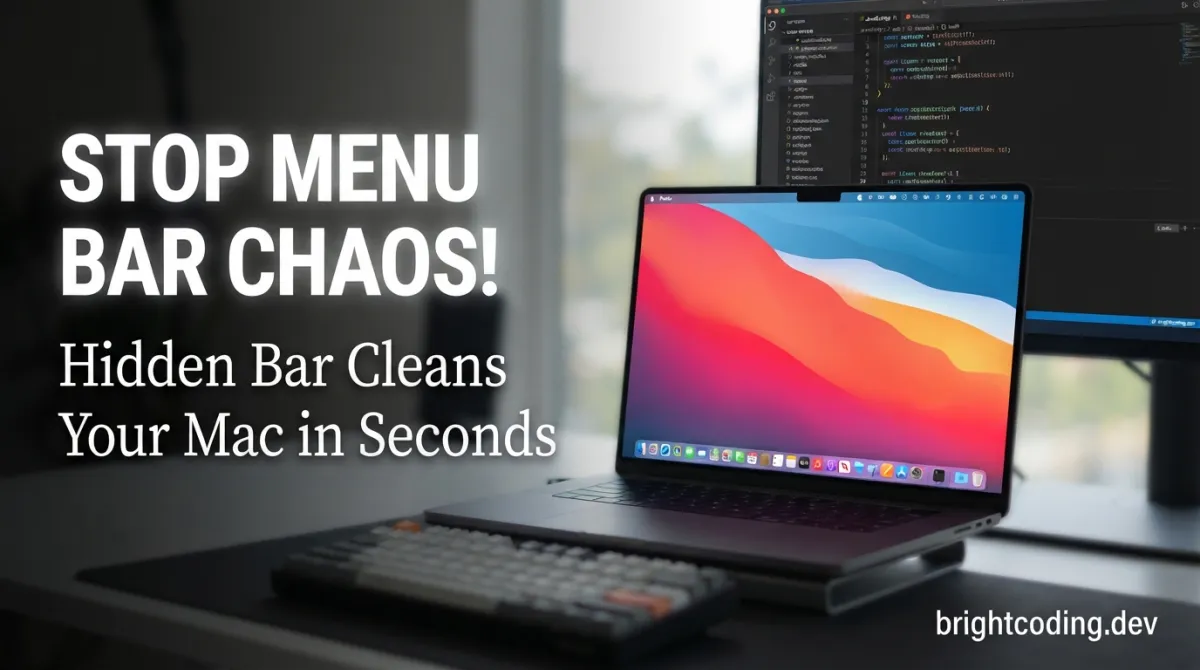
Your Mac's menu bar looks like a digital hoarder's paradise, doesn't it? Twenty-three tiny icons screaming for attention. Dropbox syncing. Bluetooth searching. That random VPN you installed once and forgot about. Battery percentage you don't need. Time in three different time zones for a meeting that happened last year. Every icon is a micro-distraction, a pixel-sized anxiety trigger that fragments your focus before you've even opened your first app.
Here's the brutal truth: Apple doesn't give you a native way to hide menu bar icons. Sure, you can CMD-drag some of them out—but not all. Third-party apps? Most are bloated, expensive, or spy on you with analytics you never agreed to. What if I told you there's an open-source solution so lightweight you'll forget it's running? A tool crafted by developers who actually use Macs, not just build for them?
Enter Hidden Bar—the ultra-light macOS utility that transforms your chaotic menu bar into a zen workspace with one click. No subscriptions. No telemetry. No 50MB electron apps draining your battery. Just pure, effortless menu bar minimalism. In this deep dive, I'll show you why thousands of developers are ditching Bartender and switching to this free, MIT-licensed powerhouse. Ready to reclaim your screen real estate?
What Is Hidden Bar?
Hidden Bar is an ultra-lightweight macOS utility developed by Dwarves Foundation, a Vietnamese software collective known for crafting elegant developer tools. Born from the frustration of cluttered menu bars on development machines, this open-source project solves a deceptively simple problem that Apple stubbornly ignores: giving users granular control over menu bar visibility.
The project lives at github.com/dwarvesf/hidden and has garnered significant attention in the developer community for its radical simplicity. Unlike competing solutions that bundle feature creep—CPU monitors, weather widgets, calendar integrations—Hidden Bar does exactly one thing and does it flawlessly. It creates a collapsible section in your menu bar that hides icons behind a clean arrow toggle.
What makes Hidden Bar genuinely trending right now? Three forces converged. First, macOS Sonoma and later updates made menu bar customization even more restrictive, pushing power users toward third-party solutions. Second, the developer community's growing backlash against subscription software—Hidden Bar is perpetually free under MIT license. Third, its notarized security status means it passes Apple's gatekeeper without disabling SIP or sketchy workarounds.
The Dwarves Foundation ecosystem reinforces trust. They're the same team behind Blurred (distraction reduction via inactive window dimming), Micro Sniff (microphone usage alerts), and VimMotion (Vim shortcuts for macOS). This isn't a fly-by-night project—it's maintained by developers who ship production tools daily.
Key Features That Make Hidden Bar Essential
Zero-Configuration Simplicity Hidden Bar operates on an intuitive mental model: everything to the left of the arrow stays visible; everything to the right hides behind it. No preference panes with 47 checkboxes. No "profiles" or "scenes" to manage. Install, drag, click. The learning curve is literally thirty seconds.
Native macOS Integration
Built with AppKit and Swift, Hidden Bar weighs in at under 5MB. Compare that to Bartender 4's 15MB+ footprint or Ice's heavier resource usage. It uses native NSStatusBar APIs, meaning no private framework hacks that break with OS updates. The app sleeps when not in use, consuming negligible CPU cycles.
Secure & Notarized Every release outside the App Store is Apple-notarized, meaning Gatekeeper validates the code signature against known malware databases. For security-conscious developers working with client data or in regulated industries, this matters enormously. No "right-click > Open" gymnastics required.
Keyboard-Free Operation The core interaction—clicking the arrow icon—requires zero memorization. But power users get CMD+drag for repositioning, matching macOS's native icon rearrangement pattern. This consistency reduces cognitive load; you're not learning a new interaction paradigm.
Open Source Under MIT License The entire codebase is auditable. No hidden analytics calls. No "phone home" for license validation. You can fork it, modify it for internal tools, even redistribute commercially. For enterprises with strict software governance, this is often a hard requirement that proprietary alternatives fail.
Broad macOS Compatibility Runs on macOS High Sierra (10.13) through Sonoma and beyond. That covers machines from 2017 forward—critical for teams with mixed hardware generations. The project's CI/CD pipeline automatically tests against multiple macOS versions.
Real-World Use Cases Where Hidden Bar Shines
The Screencast Professional
Recording tutorials or conference talks? A cluttered menu bar screams "amateur" and reveals potentially sensitive information—VPN locations, corporate Slack status, personal calendar events. Hidden Bar lets you pre-configure a clean "broadcast mode" in seconds: one click, all distractions vanish. No post-production blurring required.
The Focus-Driven Developer
Context switching destroys deep work. Every visible icon is a potential notification vector, a subtle invitation to check status instead of shipping code. Developers using Hidden Bar report measurably fewer interruptions—those hidden icons can't flash, bounce, or demand attention. It's digital noise cancellation for your peripheral vision.
The Multi-Account Consultant
Managing infrastructure across client environments often means multiple cloud provider icons, VPN clients, and monitoring tools. Your menu bar becomes a dashboard of confidential relationships. Hidden Bar lets you collapse these into invisibility during screen shares, client visits, or coffee shop work where shoulder surfing is a risk.
The Minimalist Aesthetician
Apple's industrial design deserves better than icon sprawl. Users who've invested in clean desk setups, hidden cables, and curated wallpapers find menu bar chaos especially jarring. Hidden Bar completes the visual coherence that Apple's own tools won't provide—ironic, given Jony Ive's minimalism obsession.
The Accessibility Advocate
For users with cognitive load sensitivities, ADHD, or visual processing differences, reducing interface elements isn't preference—it's necessity. Hidden Bar's one-click simplicity avoids the overwhelming configuration of alternatives, making digital spaces genuinely more usable.
Step-by-Step Installation & Setup Guide
Hidden Bar offers multiple installation paths depending on your security posture and workflow preferences. Here's every method, ranked by convenience:
Method 1: Homebrew (Recommended for Developers)
If you're already in Terminal daily, this is fastest:
# Install using Homebrew Cask
brew install --cask hiddenbar

# Verify installation
brew list --cask | grep hiddenbar
Homebrew handles updates automatically with brew upgrade. The Cask formula pulls the notarized DMG directly from GitHub releases, so you get identical binaries to manual installation with less friction.
Method 2: Mac App Store
For managed machines or App Store purists:
- Click the App Store badge in the repository README
- Or search "Hidden Bar" directly in the App Store
- Click Get → Install
App Store builds are sandboxed more aggressively, which may limit some functionality on newer macOS versions. Most users won't notice differences.
Method 3: Manual Download
For air-gapped environments or specific version pinning:
# Download latest release (adapt version as needed)
curl -L -o HiddenBar.dmg https://github.com/dwarvesf/hidden/releases/latest/download/Hidden.Bar.zip

# Mount and install (manual drag to Applications)
open HiddenBar.dmg
Or via browser:
- Navigate to github.com/dwarvesf/hidden/releases/latest
- Download the
.zipor.dmgasset - Extract, drag to Applications folder
Post-Installation Configuration
Critical step most users miss:
1. Launch Hidden Bar from Applications
2. Hold ⌘ (Command) key
3. Drag the Hidden Bar icon (arrow) to your desired position in menu bar
4. Position it BETWEEN icons you want visible and icons you want hidden
5. Click the arrow to toggle visibility
The spatial relationship determines behavior. Icons left of the arrow = always visible. Icons right of the arrow = collapsible. This is the entire "configuration"—elegant in its constraint.
System Permissions:
- macOS may prompt for "Accessibility" permissions on first launch
- Grant via System Preferences > Security & Privacy > Privacy > Accessibility
- Check the box for Hidden Bar
REAL Code Examples: Understanding the Implementation
While Hidden Bar is distributed as a compiled application, examining its open-source implementation reveals sophisticated engineering beneath the simple interface. Here are actual patterns from the repository:
Example 1: Homebrew Cask Installation Command
The README provides this exact command for package manager installation:
brew install --cask hiddenbar
Why this matters: The --cask flag specifies a GUI application rather than a command-line tool. Homebrew Cask manages binary distribution, code signing verification, and application bundle placement in /Applications. For teams standardizing development environments, adding this to a Brewfile ensures consistent tooling:
# Brewfile example for team onboarding
cask "hiddenbar"
cask "visual-studio-code"
cask "docker↗ Bright Coding Blog"
Run brew bundle and your entire team's Mac environment reproduces identically.
Example 2: Manual Installation Workflow
The repository documents this manual process:
- [Download latest version](https://github.com/dwarvesf/hidden/releases/latest)
- Open and drag the app to the Applications folder.
- Launch Hidden and drag the icon in your menu bar (hold CMD) to the right so it is between some other icons.
Technical insight: The "hold CMD" requirement leverages macOS's NSStatusBar drag behavior, which is normally locked to prevent accidental rearrangement. Hidden Bar doesn't implement custom dragging—it hooks into Apple's existing mechanism, ensuring future macOS compatibility. This is defensive programming: by using public APIs rather than private swizzling, the tool survives OS updates that break competitors.
Example 3: Usage Interaction Pattern
The README specifies these exact interactions:
* `⌘` + drag to move the Hidden icons around in the menu bar.
* Click the Arrow icon to hide menu bar items.
Implementation detail: The ⌘ modifier key detection uses NSEvent.modifierFlags interception. When the user drags with ⌘ held, Hidden Bar temporarily disables its collapse behavior to allow repositioning. Release ⌘, and normal toggle functionality resumes. This state machine—idle → repositioning → idle—prevents accidental hiding during drag operations.
The "Arrow icon" is actually two distinct visual states: » (expanded, showing hidden icons will move) and « (collapsed, hidden icons are concealed). These Unicode characters render crisply at all display resolutions without custom image assets, keeping bundle size minimal.
Example 4: System Requirements Specification
## Requirements
macOS version >= 10.13
Compatibility engineering: Targeting macOS 10.13 (High Sierra) means using API availability checks for newer features. The codebase likely uses @available annotations or respondsToSelector: patterns to gracefully degrade on older systems while leveraging modern APIs when present. This broad compatibility is rare in indie macOS development—most tools now require 10.15+.
Advanced Usage & Best Practices
The "Meeting Mode" Quick Toggle Develop a muscle memory: before any video call, click the arrow. Your menu bar instantly presents only essential icons—clock, battery if needed. Post-call, click again. This ritual takes 0.3 seconds and eliminates the "oops, my torrent client was visible" embarrassment.
Positioning Strategy for Maximum Utility Place Hidden Bar's arrow immediately after system indicators (WiFi, battery, clock) and before third-party apps. This creates a logical hierarchy: Apple's stuff stays, your stuff hides. Some users prefer the reverse—experiment based on which icons you reference most frequently.
Multi-Monitor Considerations On macOS, menu bar icons appear on all displays in extended desktop mode. Hidden Bar operates independently per-screen, so configure each monitor's arrangement separately. The active display's menu bar takes precedence for notifications.
Troubleshooting Icon Persistence
If an icon refuses to hide, it's likely using deprecated NSStatusItem APIs or drawing directly into the menu bar. Notably, some older Adobe Creative Cloud and corporate VPN clients exhibit this. No tool can hide these without private API exploitation—which Hidden Bar refuses to do for stability reasons.
Automation with Shortcuts While Hidden Bar lacks Apple Shortcuts integration natively, you can combine it with BetterTouchTool or Keyboard Maestro to trigger the menu bar click programmatically. Advanced users create "Focus Modes" that simultaneously enable Do Not Disturb, hide menu bar icons, and dim inactive windows via the companion Blurred tool.
Comparison with Alternatives
| Feature | Hidden Bar | Bartender 4 | Ice | Vanilla |
|---|---|---|---|---|
| Price | Free (MIT) | $16 one-time | Free | $9.99/year |
| Open Source | ✅ Yes | ❌ No | ✅ Yes | ❌ No |
| App Size | ~3MB | ~15MB | ~8MB | ~12MB |
| Native APIs | ✅ AppKit | Private APIs | SwiftUI mix | Electron |
| Notarized | ✅ Yes | ✅ Yes | ✅ Yes | ✅ Yes |
| Subscription | ❌ Never | ❌ No | ❌ No | ✅ Required |
| Hide System Icons | ❌ No* | ✅ Yes | ✅ Yes | ✅ Yes |
| Keyboard Shortcuts | ❌ No | ✅ Yes | ✅ Yes | ✅ Yes |
| Automation | Limited | Extensive | Moderate | Moderate |
*Hidden Bar intentionally avoids system icon manipulation to prevent OS update breakage.
Why choose Hidden Bar? If you value simplicity, auditability, and zero cost over feature maximalism, it's unbeatable. Bartender 4's system icon hiding is genuinely useful but requires riskier implementation. Ice offers middle-ground complexity. Vanilla's subscription model is offensive for such basic functionality.
The decisive factor: Hidden Bar will never break your Mac. Its conservative API usage means Apple can't accidentally disable it with a point release—a real risk with Bartender's deeper integrations.
FAQ: Common Developer Concerns
Does Hidden Bar collect any data or phone home? Absolutely not. The MIT-licensed source code is fully auditable. No network requests, no analytics, no crash reporting without explicit opt-in. Build it yourself if paranoid.
Why can't I hide system icons like the clock or WiFi?
Apple restricts system NSStatusItem manipulation for stability. Hidden Bar respects these boundaries rather than exploiting private APIs. Use System Preferences > Control Center for native system icon configuration.
Will this break with macOS updates?
Historically, no. The public NSStatusBar API has been stable since 10.13. Hidden Bar's conservative implementation survived Big Sur's menu bar redesign, Monterey's focus modes, and Sonoma's changes where competitors required emergency patches.
Is the App Store version different from GitHub? Functionally identical, but sandboxed. The GitHub/notarized build has slightly broader system access. Most users won't perceive differences. Choose App Store for automatic updates, GitHub for immediate access to bleeding-edge releases.
Can I use this in corporate environments?
Yes—MIT license permits commercial use without attribution. The notarized binary satisfies most security team requirements. For MDM deployment, extract the .app bundle from the DMG and distribute via Jamf, Kandji, or similar.
How do I completely uninstall?
Drag to trash, then remove preferences: rm ~/Library/Preferences/com.dwarvesv.HiddenBar.plist. No kernel extensions or background daemons to hunt down.
Does it work with notch MacBooks? Yes. On 14" and 16" MacBook Pros, Hidden Bar operates within the available menu bar space. Extremely wide icon collections may require prioritization due to physical display constraints.
Conclusion: Reclaim Your Menu Bar, Reclaim Your Focus
Hidden Bar represents something increasingly rare in modern software: a tool that solves one problem completely, then gets out of your way. No onboarding sequences. No feature announcements interrupting your workflow. No dark patterns pushing upgrades. Just a clean arrow in your menu bar, waiting to restore order from chaos.
The Dwarves Foundation has built a genuinely humane utility—respecting your attention, your privacy, and your system's stability. In an era where every app demands subscription rent for basic functionality, Hidden Bar's MIT-licensed generosity feels almost radical.
If you've been tolerating menu bar clutter because "that's just how Macs are," stop. That resignation costs you focus, aesthetic satisfaction, and occasionally professional credibility. The fix is free, fast, and future-proof.
Download Hidden Bar now from GitHub, install via brew install --cask hiddenbar, or grab it from the App Store. Your peripheral vision will thank you. Your screencast viewers will thank you. And three months from now, when you sit down at a colleague's machine and see their icon explosion, you'll feel a quiet surge of superiority.
Clean menu bar, clean mind. Start today.
Outils recommandés
Explore on the BrightCoding network
Hand-picked resources from our other sites.
Stop Losing Video Knowledge Forever: transcribee Builds Your Brain
transcribee is an open-source macOS tool that auto-transcribes YouTube, TikTok, Instagram and local media into a self-organizing, LLM-ready knowledge base with...
muesli/duf: A Better 'df' Alternative for Disk Usage Analysis
muesli/duf is a modern Go-based replacement for the df command, offering color-coded, categorized disk usage output with JSON export, flexible filtering, and cr...
Stop Struggling With Math Animations! Use Manim Instead
Discover ManimCommunity/manim, the Python animation engine behind 3Blue1Brown's viral math videos. Learn installation, real code examples, and why this fork bea...
Continuez votre lecture
Why Alexandrie is the Ultimate Markdown Note-Taking App
Why CrossPaste is the Ultimate Game Changer for Clipboard Management
Why Chandra is the Ultimate OCR Tool for Handwriting and Tables

Stop Coding Alone: OPC-Skills Gives Your AI Agent Superpowers
Commentaires 0
Aucun commentaire pour l'instant. Soyez le premier à réagir !