Stop Paying for Screen Annotation! DrawPen Is Free and Insane
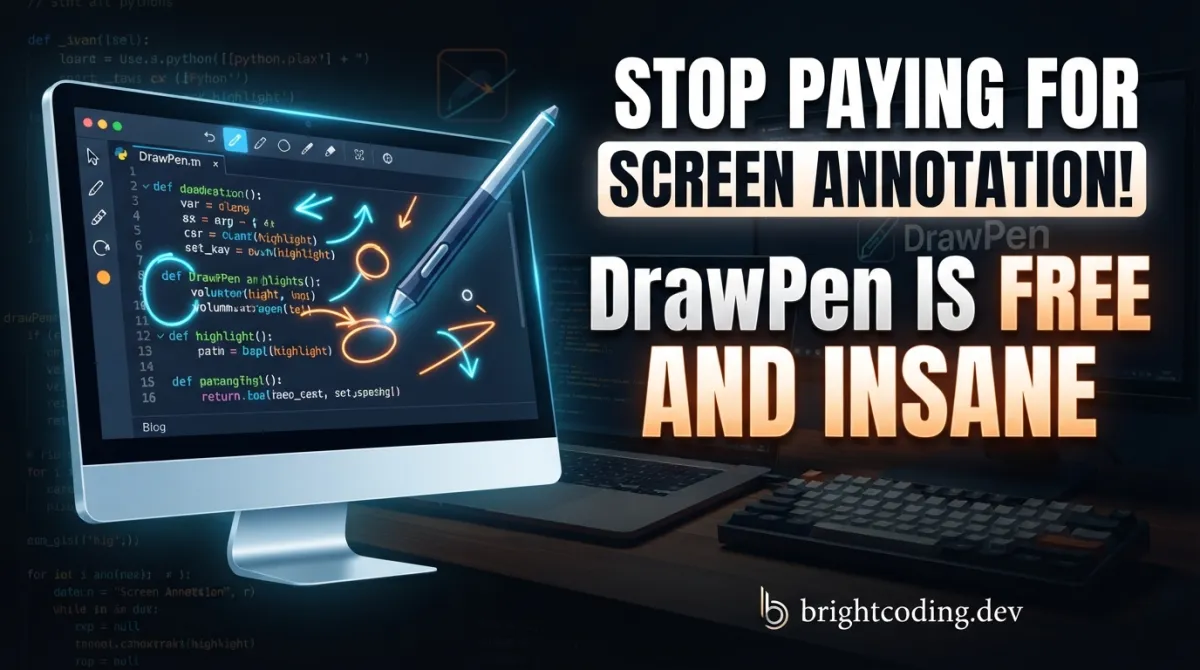
What if I told you that every single screen annotation tool you've paid for was a complete waste of money?
Picture this: You're in the middle of a critical code review, scrambling to explain a complex architecture to your remote team. You fire up your $15/month annotation tool, and it lags. Or worse, it doesn't even support Linux. Maybe you're a streamer trying to highlight a bug live, and your "professional" tool crashes mid-demo. The frustration is real. The embarrassment? Even more so.
But here's the secret that top developers and technical presenters have been hiding from you. There's a free, open-source screen annotation tool that's faster, lighter, and more powerful than anything you've shelled out cash for. It's called DrawPen, and it's about to make your paid subscriptions look like a bad joke.
Built by Dmytro Vasin and available right now on GitHub, DrawPen runs natively on macOS, Windows, and Linux — no compromises, no platform discrimination. Whether you're debugging distributed systems, teaching a coding bootcamp, or creating technical content, this tool transforms how you communicate visually. And did I mention? It's completely free.
Ready to discover why developers are quietly abandoning expensive alternatives? Let's dive deep into what makes DrawPen the most underrated tool in your arsenal.
What Is DrawPen?
DrawPen is an open-source, cross-platform screen annotation application that lets you draw, highlight, type, and point directly on your screen — in real-time, without interfering with your underlying applications.
Created by Dmytro Vasin, a developer who clearly understood the pain of fragmented annotation tools, DrawPen solves a deceptively simple problem with elegant execution. Unlike bloated screen recorders or overpriced presentation software, DrawPen does one thing exceptionally well: it lets you annotate anything on your screen, instantly.
Why It's Trending Right Now
The developer community is waking up to a harsh reality. Most screen annotation tools fall into two terrible categories: expensive proprietary software with recurring subscriptions, or janky, single-platform hacks that break on every OS update. DrawPen shatters this false dichotomy.
Here's why it's gaining insane traction:
- True cross-platform parity — identical experience on macOS, Windows, and Linux
- Zero cost, zero catch — MIT licensed, fully open-source
- Native performance — built with Electron for responsiveness without the bloat
- Keyboard-driven workflow — every action has a shortcut, keeping you in flow state
- Active development — regular releases with real issue resolution
The repository has become a quiet phenomenon among technical presenters, developer advocates, and educators who refuse to compromise. When your alternative is paying $12-20/month for tools that don't even support your Linux workstation, DrawPen isn't just attractive — it's essential.
Key Features That Will Blow Your Mind
DrawPen isn't a toy. It's a precision instrument designed for professionals who demand speed and reliability. Let's dissect what makes it special.
Global Hotkey Activation
The killer feature? CMD/CTRL + SHIFT + A toggles annotation mode from anywhere. No window switching. No menu hunting. You're in the middle of a terminal session, hit the shortcut, and you're drawing arrows on your screen instantly. This alone saves 5-10 seconds per annotation — multiply that across hundreds of daily interactions, and you've reclaimed serious productivity.
Multiple Annotation Instruments
DrawPen ships with six distinct tools, each optimized for specific communication scenarios:
| Tool | Purpose | Best For |
|---|---|---|
| Pen | Freehand drawing | Quick sketches, circling errors |
| Shapes | Arrow, rectangle, oval, line | Architecture diagrams, UI callouts |
| Text | Typed annotations | Code comments, precise labels |
| Highlighter | Semi-transparent marking | Emphasizing code blocks, log entries |
| Laser Pointer | Temporary spotlight | Live presentations, temporary focus |
| Eraser | Selective removal | Cleaning up mistakes without clearing everything |
Visual Customization on the Fly
Switch colors with <kbd>7</kbd> and stroke thickness with <kbd>8</kbd> — no dialogs, no delays. This matters enormously during live coding sessions where pausing breaks audience engagement.
Whiteboard Mode
Hit CMD/CTRL + E and your entire screen becomes a clean canvas. This is game-changing for brainstorming sessions, algorithm explanations, or when you need isolation from cluttered desktops.
Toolbar & UI Flexibility
Show or hide the toolbar with CMD/CTRL + T. Position it where you want. Reset everything to defaults when you inevitably customize yourself into confusion. DrawPen respects that your workflow is personal.
Linux Wayland Compatibility (With Workarounds)
Yes, it even handles the fragmented Linux display server landscape. The known Wayland segmentation fault on Fedora KDE and Zorin has documented workarounds — more on this in the installation section.
Real-World Use Cases Where DrawPen Dominates
Theory is cheap. Let's examine where DrawPen genuinely transforms workflows.
1. Live Code Reviews and Pair Programming
You're screen-sharing in Slack huddles or Zoom, walking through a pull request. Instead of saying "that function on line 47," you draw a neon arrow directly on the code. Your partner sees exactly what you mean, instantly. The pen tool for quick circles, text tool for suggested renames — it's like having a physical whiteboard without the camera angle nightmares.
2. Technical Content Creation (YouTube, Twitch, Courses)
Content creators know the pain of post-production annotation. DrawPen enables live, on-screen emphasis during recording. Highlight the exact log line that reveals the bug. Draw attention to memory usage spikes in real-time. Your editing time plummets because the annotation happened during capture.
3. Remote Teaching and Workshops
Teaching React↗ Bright Coding Blog hooks or Kubernetes architecture? The laser pointer keeps eyes focused. The highlighter emphasizes critical syntax. Shapes illustrate data flow. Students in Bangalore see exactly what students in Berlin see — no ambiguity, no "can you scroll up a bit?"
4. Debugging and Incident Response
During a 3 AM production incident, clarity saves systems. Screenshot your monitoring dashboard, annotate the anomalous metric, share in your incident channel. The shapes tool creates quick red boxes around failing services. Text annotations document timestamps and hypotheses without context-switching to a notes app.
5. UX/UI Design Collaboration
Designers and developers speaking different languages? DrawPen bridges the gap. Draw directly on staging deployments, mark spacing issues, suggest alternative layouts. The whiteboard mode becomes a shared visual language that transcends Figma comments and Jira tickets.
Step-by-Step Installation & Setup Guide
Getting DrawPen running takes under two minutes. Here's every path, documented for copy-paste convenience.
Method 1: Direct Download (All Platforms)
Visit the releases page and grab the appropriate installer:
- Windows:
DrawPen.Setup.exe - macOS:
DrawPen-0.0.50-arm64.dmg(Apple Silicon) - Linux:
drawpen_0.0.50_amd64.deb(Debian/Ubuntu)
Double-click, drag to Applications (macOS), or dpkg -i (Linux). Done.
Method 2: Package Managers (Recommended)
For version control and easy updates:
# macOS via Homebrew — the developer's best friend
brew install --cask drawpen

# Windows via Scoop — cleaner than Chocolatey, fight me
scoop bucket add extras
scoop install extras/drawpen
Linux Wayland Workaround (Critical for Fedora/Zorin Users)
If DrawPen crashes on launch with a segmentation fault, you're likely on Wayland. Two solutions exist:
# Option 1: Launch with X11 backend explicitly
drawpen --ozone-platform=x11

# Option 2: Download the dedicated X11 package from releases
# Grab drawpen-x11 from: https://github.com/DmytroVasin/DrawPen/releases/latest/
The root cause? Electron's Ozone platform abstraction layer conflicts with certain Wayland compositors. The --ozone-platform=x11 flag forces Chromium's rendering backend to X11, bypassing the issue entirely. This isn't a DrawPen bug — it's documented across multiple Electron applications, including Microsoft Teams for Linux.
Post-Installation Verification
Launch DrawPen and immediately test the global shortcut: CMD/CTRL + SHIFT + A. Your cursor should change, indicating annotation mode. Draw a quick line, hit the shortcut again to exit. If this works, your installation is golden.
Optional: Autostart Configuration
For always-available annotation, add DrawPen to your startup applications. On macOS, use System Preferences > Login Items. On Linux desktop environments, check your DE's autostart settings. Windows users can use Task Manager's Startup tab.
REAL Code Examples and Configuration Deep-Dive
DrawPen's power lies in its keyboard-driven interface. Let's dissect the actual keybinding system from the repository documentation, with practical implementation patterns.
Understanding the Keybinding Architecture
The keybinding table from the README reveals a layered shortcut design: global shortcuts work anywhere, while in-app shortcuts require DrawPen to be active. This prevents accidental triggers during normal work.
Here's how to internalize the core workflow:
# The master toggle — memorize this muscle memory
# CMD/CTRL + SHIFT + A
# This is your entry point to annotation nirvana

# Once in annotation mode, instrument selection is single-key
# No modifier chords needed — designed for speed
Practical Annotation Sequence
Imagine you're reviewing a colleague's API response in your terminal. Here's the exact keystroke sequence:
# Step 1: Global activation from anywhere
# [CMD/CTRL + SHIFT + A] → Enter annotation mode

# Step 2: Select highlighter for emphasis
# [H] or [4] → Highlighter active

# Step 3: Draw over the critical JSON field
# Drag to highlight the "error_count": 47 line

# Step 4: Switch to text for explanation
# [T] or [3] → Text tool active
# Click where you want the note, type: "This spikes to 200+ under load"

# Step 5: Add directional clarity with arrow shape
# [A] or [2] → Shapes active, arrow selected
# Draw from your text to the highlighted field

# Step 6: Exit cleanly
# [CMD/CTRL + SHIFT + A] → Back to normal interaction
This entire workflow takes under 10 seconds once memorized. Compare that to opening a screenshot tool, capturing, annotating in a separate editor, saving, and sharing.
Linux Launch Script with Wayland Fallback
For Linux users who switch between X11 and Wayland sessions, create a robust launcher:
#!/bin/bash
# save as ~/bin/drawpen-safe
# Make executable: chmod +x ~/bin/drawpen-safe

# Detect session type and launch appropriately
if [ "$XDG_SESSION_TYPE" = "wayland" ]; then
    echo "Wayland detected, forcing X11 backend..."
    drawpen --ozone-platform=x11 "$@"
else
    echo "X11 session, native launch..."
    drawpen "$@"
fi
This script introspects your session type and applies the workaround automatically. Add ~/bin to your PATH, and drawpen-safe becomes your worry-free command.
Bulk Configuration Reset
When you've customized colors, moved the toolbar off-screen, or remapped keys into chaos, DrawPen provides escape hatch:
# The "nuclear option" — available in Settings or via reset trigger
# Resets: keybindings, color palette, toolbar position, all preferences
# Equivalent to fresh install without re-downloading
This is surprisingly valuable for shared workstations or when onboarding team members with standardized setups.
Advanced Usage & Best Practices
Ready to go from user to power user? These pro tips separate DrawPen novices from annotation wizards.
Build Muscle Memory for Instrument Keys
The number row (<kbd>1</kbd> through <kbd>6</kbd>) maps to instruments in order. Don't look at the toolbar — feel the keys. Pen (1), Shapes (2), Text (3), Highlighter (4), Laser (5), Eraser (6). Practice switching blindfolded. In live presentations, hesitation kills credibility.
Color Strategy for Semantic Meaning
Establish personal conventions: red for errors, yellow for warnings, green for correct/success, blue for informational. Consistency lets your audience parse annotations without conscious thought. Cycle colors with <kbd>7</kbd> until your palette is muscle memory.
Thickness Modulation
Thin strokes (<kbd>8</kbd> to reduce) for precise code annotations. Thick strokes for audience-visible presentations viewed on projectors. The same tool serves different contexts through this single adjustment.
Whiteboard Mode as Thinking Space
Before complex debugging, hit CMD/CTRL + E. Sketch the system architecture. Draw data flow. The physical act of diagramming activates different cognitive pathways than typing. Many developers report faster root cause analysis using this technique.
Eraser vs. Clear Desk
Know the difference: Eraser (<kbd>E</kbd> or <kbd>6</kbd>) removes specific strokes. Clear Desk (<kbd>CMD/CTRL + K</kbd>) wipes everything. During iterative explanations, use eraser surgically. When pivoting topics entirely, clear desk for clean slate.
Comparison with Alternatives: Why DrawPen Wins
| Feature | DrawPen | Epic Pen | ZoomIt (Windows) | Presentify (macOS) |
|---|---|---|---|---|
| Price | Free (MIT) | $15-25 one-time | Free | $4.99 one-time |
| macOS | ✅ Native | ❌ No | ❌ No | ✅ Native |
| Windows | ✅ Native | ✅ Yes | ✅ Native | ❌ No |
| Linux | ✅ Native | ❌ No | ❌ No | ❌ No |
| Open Source | ✅ Yes | ❌ No | ❌ No | ❌ No |
| Global Hotkey | ✅ Yes | ✅ Yes | ✅ Yes | ✅ Yes |
| Laser Pointer | ✅ Yes | ❌ No | ✅ Yes | ✅ Yes |
| Whiteboard Mode | ✅ Yes | ❌ No | ✅ Yes | ❌ No |
| Package Manager Install | ✅ Homebrew/Scoop | ❌ Manual | ❌ Manual | ❌ Mac App Store |
The verdict is brutal. DrawPen is the only tool that checks every box: free, open-source, truly cross-platform, and feature-complete. Epic Pen locks you to Windows. ZoomIt is Windows-only and closed-source. Presentify is macOS-only. Only DrawPen respects developers who work across operating systems — which, in 2024, is most of us.
FAQ: Your Burning Questions Answered
Is DrawPen really free for commercial use?
Absolutely. MIT license means use it in your $50M startup, your freelance gigs, your enterprise consulting — zero attribution required, zero fees. The source code is yours to inspect, modify, and even redistribute.
Why does DrawPen crash on my Linux machine?
Likely a Wayland compositor conflict. Try launching with drawpen --ozone-platform=x11 or download the drawpen-x11 package. This affects specific distributions like Fedora KDE and Zorin. The issue is documented with workarounds — not ignored.
Can I use DrawPen during screen sharing?
Yes — that's the primary use case. Annotations appear on your screen capture because they're rendered as an overlay layer. Zoom, Teams, Slack, OBS — all see your DrawPen marks in real-time.
How do I move the toolbar if it's blocking content?
Drag it. The toolbar is positionable anywhere on screen. If you lose it off-screen somehow, reset via Settings or the reset-to-original function.
Is there a tablet/pen pressure support?
Currently, DrawPen uses standard mouse/touchpad input. Pressure sensitivity isn't implemented. For Wacom or Apple Pencil users, this may feel less natural than dedicated drawing applications.
Can I save my annotations?
DrawPen is designed for ephemeral, real-time annotation. There's no native save-to-file feature — by design. For persistent markup, combine with screenshot tools or screen recorders.
How often is DrawPen updated?
Active development is visible on the GitHub repository. The 0.0.50 release indicates early-but-stable versioning. Issue response times are reasonable for an open-source project.
Conclusion: Your Screen Deserves Better
Here's the uncomfortable truth: you've been overpaying for screen annotation, or worse, settling for platform-locked tools that don't respect your workflow. DrawPen changes everything.
This isn't hyperbole. It's a free, MIT-licensed, actively maintained application that runs identically on the three major desktop platforms. It launches faster than you can say "subscription fee." Its keyboard-driven design keeps you in flow state. And it costs exactly zero dollars to try, to use, to depend on.
Dmytro Vasin built something genuinely useful and gave it to the developer community without strings. The least we can do is spread the word — and star the repository.
Stop reading. Start annotating. Head to github.com/DmytroVasin/DrawPen, grab the release for your platform, and experience what screen communication should have been all along. Your next code review, your next presentation, your next debugging session — they'll all be sharper, faster, and more effective.
The secret's out. The tools are free. What are you waiting for?
Outils recommandés
Explore on the BrightCoding network
Hand-picked resources from our other sites.
Stop Losing Video Knowledge Forever: transcribee Builds Your Brain
transcribee is an open-source macOS tool that auto-transcribes YouTube, TikTok, Instagram and local media into a self-organizing, LLM-ready knowledge base with...
gokapso/whatsapp-cloud-inbox: Open-Source WhatsApp Inbox for Cloud API
gokapso/whatsapp-cloud-inbox is an open-source WhatsApp inbox built with Next.js and TypeScript. It provides a WhatsApp Web-style UI for the Cloud API via Kapso...
Control Claude Code From Your Phone: ClaudeBot Exposed
Discover ClaudeBot, the open-source system tray app that lets you control Claude Code via Telegram from anywhere. Complete setup guide, real code examples, and...
Continuez votre lecture
The Ultimate Guide to Self-Hosted Workflow Automation Executors: Take Control of Your Automation Empire

AI Research Assistant: How Real-Time Web Scraping is Revolutionizing Knowledge Work in 2025

🎮 The Ultimate Guide to Open Source JavaScript Games: 100+ Free Games & Dev Tools You Can Use Today

Stop Coding Alone: OPC-Skills Gives Your AI Agent Superpowers
Commentaires 0
Aucun commentaire pour l'instant. Soyez le premier à réagir !