Stop Writing UI from Scratch! Use Magic MCP Instead
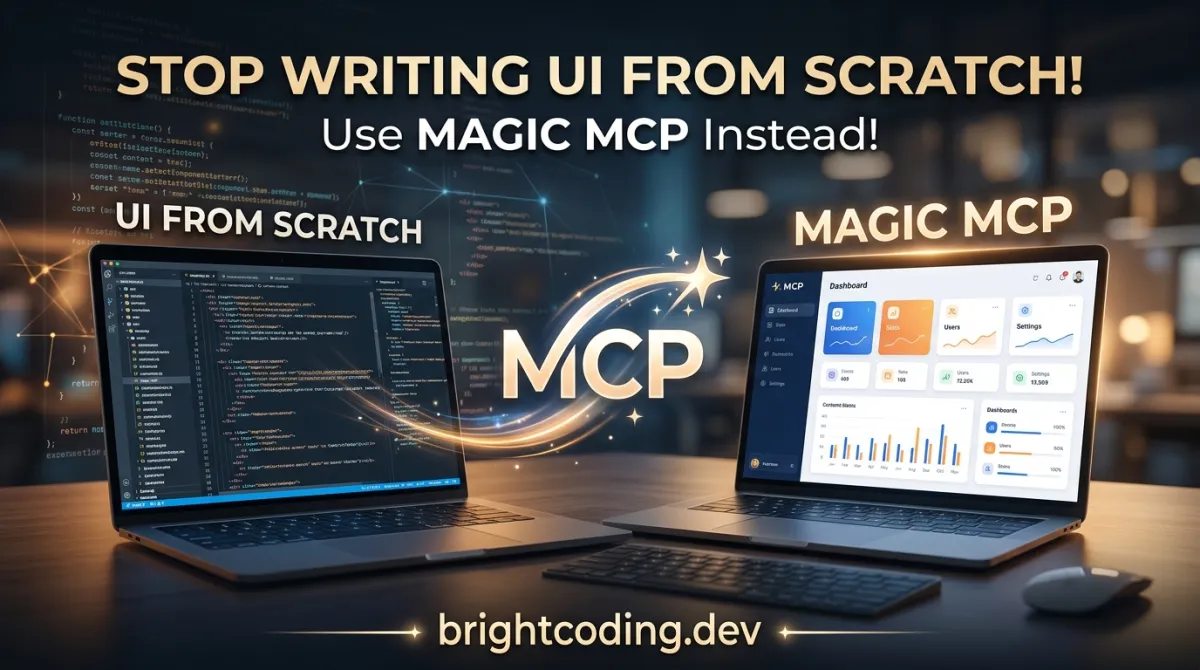
Stop Writing UI from Scratch! Use Magic MCP Instead
What if you could describe a UI component in plain English and watch it materialize in your IDE—fully typed, beautifully styled, and production-ready—before you finish your coffee? No more endless tweaking of CSS margins. No more hunting through component libraries for "something close enough." No more context-switching between Figma and your code editor, praying the handoff matches reality.
Here's the brutal truth: developers waste 40% of their time on UI implementation, according to multiple engineering productivity studies. That's two days every week spent on buttons, navbars, and form layouts instead of solving real business problems. The modern frontend stack—React↗ Bright Coding Blog, TypeScript, Tailwind, shadcn/ui—promised speed, yet we've somehow made UI development more complex, not less.
Enter Magic MCP from 21st.dev. This isn't another component library. This isn't a Figma plugin. This is an AI agent living inside your IDE that generates UI components from natural language descriptions. Think "v0 but in your Cursor/WindSurf/Cline"—except it's not a separate tool you tab to; it's inside your workflow, listening to your commands, writing code that matches your existing project's style.
The secret? It leverages the Model Context Protocol (MCP)—the emerging standard for AI-tool integration—to become a native extension of your development environment. And it's about to change how you build frontend forever.
What Is Magic MCP?
Magic MCP (Magic Component Platform) is an AI-powered MCP server developed by 21st.dev, a platform known for curating beautiful, modern React components. Released as open-source on GitHub, it represents a fundamental shift in how developers interact with AI for UI generation.
Unlike standalone tools like Vercel's v0 that require copy-pasting code between browser and editor, Magic MCP operates natively within your IDE through the Model Context Protocol. MCP, pioneered by Anthropic, creates a standardized bridge between AI assistants and development tools—allowing AI agents to read files, execute commands, and now, generate entire UI components with full project context awareness.
The project is currently in public beta with all features free during this period. It's built on a modern TypeScript stack with full type safety, integrates with the extensive 21st.dev component library for inspiration, and includes SVGL for professional brand assets and logos. The team behind it—Serafim Cloud—has deep roots in the React and design systems community, with active presence on Discord and Twitter/X.
Why it's trending now: The convergence of three forces—sophisticated IDE AI assistants (Cursor, Windsurf, Cline), standardized AI-tool protocols (MCP), and mature component ecosystems (21st.dev, shadcn/ui)—has created the perfect environment for Magic MCP to thrive. Developers are exhausted by UI boilerplate, and Magic MCP offers genuine relief.
Key Features That Make Magic MCP Insane
AI-Powered Natural Language UI Generation
The core capability is deceptively simple: type /ui followed by a description, and watch components appear. But under the hood, Magic MCP parses your intent, consults 21st.dev's curated component patterns, and generates code that follows modern React best practices—including proper TypeScript types, accessible markup, and responsive design patterns.
Multi-IDE Native Integration Magic MCP doesn't discriminate between editors. It supports:
- Cursor — The AI-first editor taking the developer world by storm
- Windsurf — Codeium's editor with advanced AI cascade features
- VS Code — The world's most popular editor, with or without extensions
- VS Code + Cline — The open-source AI coding assistant (Beta support)
This isn't browser-based generation with manual copy-paste. The components appear directly in your project structure, respecting your existing conventions.
Production-Ready Component Architecture Every generated component draws from 21st.dev's library of battle-tested patterns. You get:
- Full TypeScript support with proper type inference
- Accessible markup following ARIA best practices
- Responsive design using modern CSS patterns
- Customizable styling that matches your design system
SVGL Brand Asset Integration Need a Vercel logo, Stripe badge, or GitHub icon? Magic MCP includes integration with SVGL, providing instant access to thousands of professional SVG brand assets—properly optimized and ready to drop into your components.
Real-Time Preview & Seamless Project Integration Components aren't dumped into a sandbox. They're placed directly in your codebase, importable from your existing files, with your project's linting rules, formatting conventions, and type definitions applied automatically.
Component Enhancement Pipeline (Coming Soon) The roadmap includes AI-powered improvement of existing components—adding animations, optimizing accessibility, or modernizing legacy patterns without manual refactoring.
Use Cases Where Magic MCP Absolutely Dominates
1. Rapid Prototyping & MVP Development
You're building a startup landing page. You need a hero section, feature grid, pricing cards, and testimonial carousel—by Friday. With Magic MCP, describe each section in natural language, get production-quality components in minutes, and spend your time on business logic instead of flexbox debugging.
2. Design System Expansion
Your team has a core component library, but product demands keep outrunning your capacity. Magic MCP generates new components that match your existing patterns—same spacing scale, color tokens, and interaction models—without requiring a dedicated design systems engineer.
3. Legacy UI Modernization
Stuck with a Bootstrap 3 dashboard that makes users cry? Use Magic MCP to incrementally replace sections with modern, accessible React components. The AI respects your project's structure, so you can modernize one panel at a time without a full rewrite.
4. Developer Velocity for Non-Frontend Specialists
Backend engineers forced to build admin interfaces. Data scientists creating internal tools. Mobile developers pitching web prototypes. Magic MCP democratizes quality UI creation—no deep CSS expertise required.
5. Consistent Brand Implementation
With SVGL integration, generating components that include proper brand assets becomes trivial. Marketing needs a partner logo wall? /ui create a responsive logo grid with hover effects using our partner brands—done.
Step-by-Step Installation & Setup Guide
Prerequisites
Before starting, ensure you have:
- Node.js (Latest LTS version strongly recommended)
- One supported IDE installed: Cursor, Windsurf, VS Code, or VS Code with Cline extension
Step 1: Generate Your API Key
Visit the 21st.dev Magic Console and generate a new API key. Store this securely—you'll need it for all installation methods.
Step 2: Choose Your Installation Path
Method 1: CLI Installation (Recommended)
The fastest path. One command installs and configures everything:
# Replace <client> with your IDE: cursor, windsurf, cline, or claude
# Replace <key> with your API key from the Magic Console
npx @21st-dev/cli@latest install <client> --api-key <key>
This automatically detects your IDE, configures the MCP server, and validates the connection.
Method 2: Manual MCP Configuration
For developers who prefer understanding every wire, add this to your IDE's MCP config file:
{
  "mcpServers": {
    "@21st-dev/magic": {
      "command": "npx",
      "args": ["-y", "@21st-dev/magic@latest", "API_KEY=\"your-api-key\""]
    }
  }
}
Config file locations by IDE:
- Cursor:
~/.cursor/mcp.json - Windsurf:
~/.codeium/windsurf/mcp_config.json - Cline:
~/.cline/mcp_config.json - Claude desktop app:
~/.claude/mcp_config.json
Method 3: VS Code Native Installation
For VS Code users, one-click installation buttons are available in the repository README. Alternatively, manual setup via User Settings JSON:
Open with Ctrl + Shift + P → Preferences: Open User Settings (JSON), then add:
{
  "mcp": {
    "inputs": [
      {
        "type": "promptString",
        "id": "apiKey",
        "description": "21st.dev Magic API Key",
        "password": true  // Masks your key for security
      }
    ],
    "servers": {
      "@21st-dev/magic": {
        "command": "npx",
        "args": ["-y", "@21st-dev/magic@latest"],
        "env": {
          "API_KEY": "${input:apiKey}"  // References the secure input above
        }
      }
    }
  }
}
For workspace-specific configuration, create .vscode/mcp.json in your project root with the same structure.
Step 3: Verify Installation
Open your IDE's AI chat panel and type /ui—you should see Magic MCP activate with a prompt for your component description.
Real Code Examples from Magic MCP
Let's examine actual implementation patterns from the Magic MCP repository and documentation.
Example 1: Basic Component Generation Command
The simplest interaction—triggering Magic MCP through your IDE's AI agent:
/ui create a modern navigation bar with responsive design
This isn't code you write in a file—it's a natural language command sent to your IDE's AI agent. The /ui prefix routes to Magic MCP, which then:
- Parses the intent (navigation bar, responsive behavior)
- Consults 21st.dev's pattern library for nav components
- Generates TypeScript React code with Tailwind classes
- Returns the component directly to your project
What you get back (representative output based on 21st.dev patterns):
import { useState } from 'react';
import { Menu, X } from 'lucide-react';  // Icon library commonly used

// Fully typed navigation component with responsive mobile menu
export function NavigationBar() {
  const [isOpen, setIsOpen] = useState(false);

  return (
    <nav className="bg-white shadow-md">
      <div className="max-w-7xl mx-auto px-4 sm:px-6 lg:px-8">
        <div className="flex justify-between h-16">
          {/* Logo area - easily customizable */}
          <div className="flex items-center">
            <span className="text-xl font-bold text-gray-900">Brand</span>
          </div>

          {/* Desktop navigation - hidden on mobile */}
          <div className="hidden md:flex items-center space-x-8">
            <a href="#" className="text-gray-600 hover:text-gray-900">Home</a>
            <a href="#" className="text-gray-600 hover:text-gray-900">Features</a>
            <a href="#" className="text-gray-600 hover:text-gray-900">Pricing</a>
          </div>

          {/* Mobile menu button - visible only on small screens */}
          <div className="md:hidden flex items-center">
            <button
              onClick={() => setIsOpen(!isOpen)}
              className="text-gray-600 hover:text-gray-900"
              aria-label="Toggle menu"  // Accessibility built-in
            >
              {isOpen ? <X size={24} /> : <Menu size={24} />}
            </button>
          </div>
        </div>
      </div>

      {/* Mobile menu dropdown with smooth transition */}
      {isOpen && (
        <div className="md:hidden">
          <div className="px-2 pt-2 pb-3 space-y-1">
            <a href="#" className="block px-3 py-2 text-gray-600 hover:bg-gray-50">Home</a>
            <a href="#" className="block px-3 py-2 text-gray-600 hover:bg-gray-50">Features</a>
            <a href="#" className="block px-3 py-2 text-gray-600 hover:bg-gray-50">Pricing</a>
          </div>
        </div>
      )}
    </nav>
  );
}
Notice the production-quality details: proper ARIA labels, responsive breakpoints (md:), state management, and clean separation of concerns.
Example 2: MCP Server Configuration (Manual Setup)
For developers configuring Magic MCP manually, here's the exact JSON structure from the repository:
{
  "mcpServers": {
    "@21st-dev/magic": {
      "command": "npx",
      "args": ["-y", "@21st-dev/magic@latest", "API_KEY=\"your-api-key\""]
    }
  }
}
Critical implementation details:
"command": "npx"— Uses npx to execute without global installation"-y"flag — Automatically accepts any prompts (non-interactive mode)"@21st-dev/magic@latest"— Always runs the latest versionAPI_KEYpassed as argument — Alternative to environment variable injection
The -y flag is essential for IDE integration because MCP servers run headlessly—there's no terminal to interact with for confirmations.
Example 3: VS Code Secure Configuration with Input Prompts
The repository's recommended VS Code setup demonstrates secure credential handling:
{
  "mcp": {
    "inputs": [
      {
        "type": "promptString",    // VS Code's built-in string input type
        "id": "apiKey",            // Unique identifier referenced below
        "description": "21st.dev Magic API Key",  // User-facing prompt text
        "password": true            // Masks input with dots for security
      }
    ],
    "servers": {
      "@21st-dev/magic": {
        "command": "npx",
        "args": ["-y", "@21st-dev/magic@latest"],
        "env": {
          "API_KEY": "${input:apiKey}"  // Template syntax referencing the input
        }
      }
    }
  }
}
This pattern is security-best-practice: your API key is never hardcoded in files that might be committed to version control. Instead, VS Code prompts at runtime, stores the value in its secure keyring, and injects it via environment variable.
Example 4: Workspace-Local Configuration
For team-shared setups, the .vscode/mcp.json variant:
{
  "inputs": [
    {
      "type": "promptString",
      "id": "apiKey",
      "description": "21st.dev Magic API Key",
      "password": true
    }
  ],
  "servers": {
    "@21st-dev/magic": {
      "command": "npx",
      "args": ["-y", "@21st-dev/magic@latest"],
      "env": {
        "API_KEY": "${input:apiKey}"
      }
    }
  }
}
The workspace-local version omits the outer "mcp" wrapper because .vscode/mcp.json is implicitly scoped to MCP configuration. This file should be committed to your repository (without actual keys) so teammates get the same server configuration—only their individual API keys remain private.
Advanced Usage & Best Practices
Break Down Complex UIs
Magic MCP handles complexity well, but you'll get better results with atomic requests. Instead of /ui create a full dashboard with sidebar, charts, and data tables, chain smaller generations: navbar → sidebar shell → chart card → data table. Each component gets more attention, and you maintain composability.
Leverage Existing Project Context
Because Magic MCP operates through MCP, it can read your existing components. Reference them in prompts: /ui create a button matching our existing PrimaryButton component but with a loading state. The AI analyzes your patterns and maintains consistency.
Iterate with Enhancement Prompts
First generation not perfect? Don't restart—refine: /ui make that navbar sticky with a blur backdrop or /ui add a dropdown menu to the third nav item. Magic MCP maintains conversation context within your IDE's AI thread.
Combine with SVGL for Brand-Heavy Components
When you need logos, icons, or brand assets, explicitly request them: /ui create a partner showcase section with logos from SVGL. The integration surfaces properly licensed, vector-perfect assets.
Version Control Your Generated Components Always review generated code before committing. Magic MCP produces high-quality output, but you should verify accessibility labels, color contrast ratios, and prop interfaces match your standards.
Magic MCP vs. Alternatives: Why This Changes Everything
| Feature | Magic MCP | v0 by Vercel | GitHub Copilot Chat | shadcn/ui CLI |
|---|---|---|---|---|
| Integration | Native IDE via MCP | Browser + copy-paste | Inline suggestions | Terminal only |
| Natural Language UI | /ui commands in chat |
Prompt-based generation | Limited UI focus | None (manual selection) |
| Project Context Awareness | Full file system access | None (isolated) | Partial (open files) | Full (local project) |
| Multi-IDE Support | Cursor, Windsurf, VS Code, Cline | Any browser | VS Code, JetBrains, Neovim | Any terminal |
| Component Source | 21st.dev curated library | Vercel's patterns | Generic training data | shadcn/ui registry |
| Brand Asset Integration | Built-in SVGL | Manual | None | None |
| Real-time Preview | In IDE | In browser | Inline diff | After installation |
| TypeScript Quality | Production-grade | Good | Variable | Excellent |
The decisive advantage? Magic MCP eliminates the context-switching tax. With v0, you generate in browser, copy code, paste into editor, fix imports, adjust styles. With Magic MCP, the component appears in your project, with correct imports relative to your file structure, following your ESLint rules, ready to use. That 30-second copy-paste loop, repeated dozens of times daily, evaporates.
FAQ: What Developers Actually Ask
Is Magic MCP free to use?
Yes, during the public beta. All features are free while Magic MCP is in beta. After launch, a freemium model with generous limits is expected. Your existing components remain fully functional regardless.
Will Magic MCP mess up my existing codebase?
No. Magic MCP only writes or modifies files related to the components it generates. It respects your project's code style, follows your directory structure, and never touches business logic or unrelated files.
Can I edit components after generation?
Absolutely. All output is standard React/TypeScript code—no lock-in, no proprietary formats. Modify styling, add props, refactor into smaller components exactly as you would hand-written code.
What happens if I hit generation limits?
You'll be prompted to upgrade your plan. Your existing components continue working perfectly; only new generations are paused until you upgrade or your cycle resets.
How current is the component library?
Immediately current. Authors publish to 21st.dev continuously, and Magic MCP has real-time access. New patterns appear as soon as the community creates them—no waiting for version updates.
Does it work with my design system?
Increasingly yes. Magic MCP reads your existing components and can match their patterns. For strict design system adherence, generate base components and wrap them in your system's primitives.
Is my code sent to external servers?
Only your natural language prompts and necessary context for component generation. Your proprietary business logic isn't transmitted. Review 21st.dev's privacy policy for full details.
Conclusion: The Future of UI Development Is Here
Magic MCP represents more than a convenience—it's a fundamental workflow transformation. By embedding AI UI generation directly into your IDE through the Model Context Protocol, it eliminates the friction that makes frontend development↗ Bright Coding Blog feel like drudgery. The days of manual component scaffolding, CSS debugging, and design-to-code translation are numbered.
The beta period offers a risk-free opportunity to experience this shift. Install it in Cursor, Windsurf, or VS Code today. Generate your first component with a simple /ui command. Feel the peculiar satisfaction of describing a UI and watching it materialize, fully typed, fully styled, fully yours.
The frontend developers who thrive in 2025 won't be those who write the most CSS. They'll be those who orchestrate AI tools with precision, who know exactly how to describe what they need, who treat natural language as a legitimate programming interface alongside TypeScript and Python↗ Bright Coding Blog.
Ready to stop writing UI from scratch? Install Magic MCP now, join the Discord community for support and feature previews, and follow @serafimcloud for updates. Your future self—staring at a finished component that took 30 seconds instead of 30 minutes—will thank you.
Star the repository, share your generated components, and help shape the future of AI-assisted UI development.
Outils recommandés
Tags
Explore on the BrightCoding network
Hand-picked resources from our other sites.
breschio/drawbridge: Browser Annotations to AI Code Prompts
breschio/drawbridge is a Chrome extension that captures browser UI annotations with full DOM context and converts them into structured task files for AI coding...
Stop Wasting Tokens: AgentOps Is the SDLC Layer Your Coding Agent Needs
AgentOps is the open-source SDLC control plane that gives coding agents persistent memory, validation gates, and compounding context. Install in 60 seconds and...
Cisco Skill Scanner Exposes Hidden AI Agent Threats
Cisco Skill Scanner is the first open-source security tool purpose-built for AI agent skills. Detect prompt injection, data exfiltration, and malicious code in...
Continuez votre lecture
Why Alexandrie is the Ultimate Markdown Note-Taking App
Why CrossPaste is the Ultimate Game Changer for Clipboard Management
Why Chandra is the Ultimate OCR Tool for Handwriting and Tables
Stop Coding Alone: OPC-Skills Gives Your AI Agent Superpowers
Commentaires 0
Aucun commentaire pour l'instant. Soyez le premier à réagir !